
Pre-defining Billing Terms for Customer based on Order Duration
Reference: 22469
(V 02.00.03-00)
Details
In Cr2, you can define Billing Terms for the customer based on Order Duration, by which while creating periodic billing Rental Orders and RPOs for the customer, system will default the billing terms for the order based on the Order Duration based Billing Term present for the customer.
Steps to Define Default Billing Terms for Customer
Access Customer Edit Window &endash; Accounts Tab, as shown in Figure 1.0.
Figure 1.0
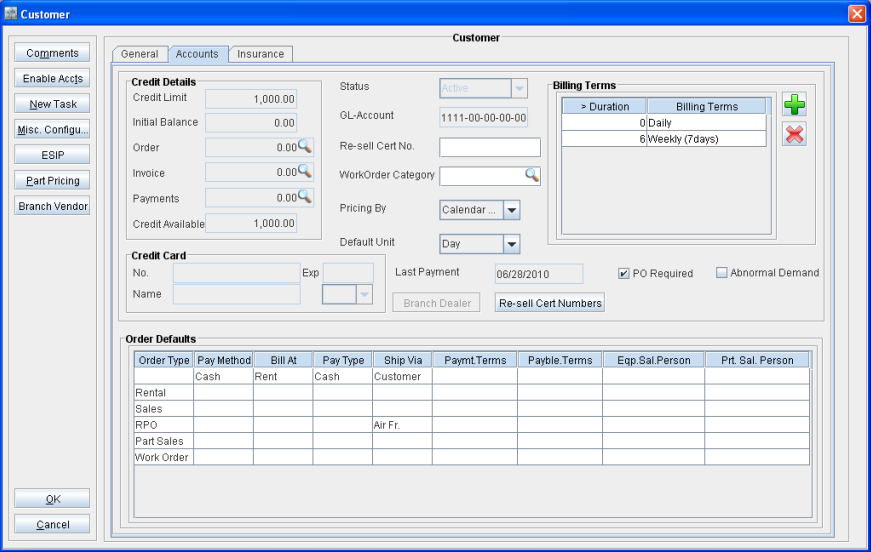
Click on Add icon present in the Bill Terms definition section.
A new line will be added in the Billing Terms section, as shown in Figure 1.1.
Figure 1.1
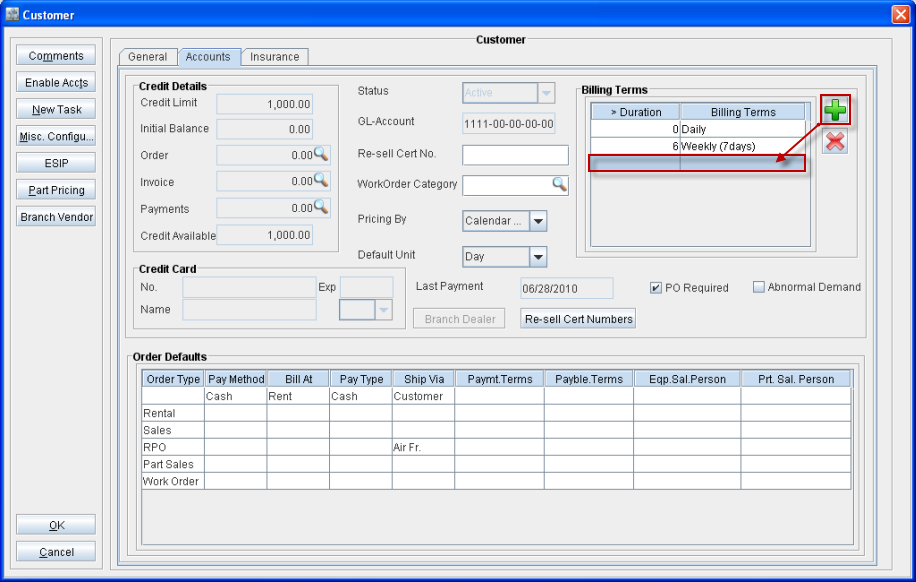
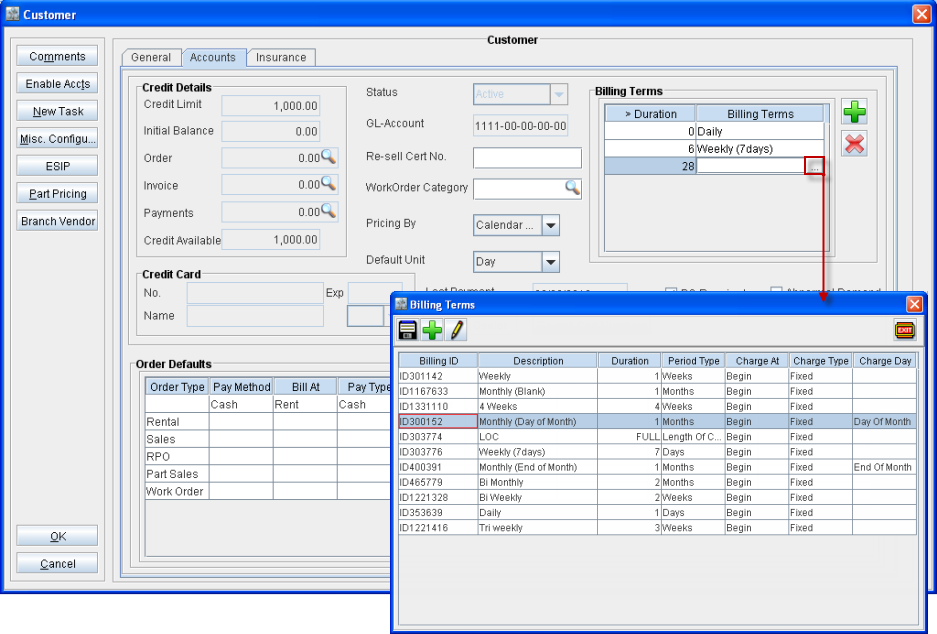
In the new row created, first, enter the Duration that has to be considered while defaulting the Billing term definition. This can be done by double-clicking inside the ’>duration’ column and following entering the value.
Next, Select the Billing Terms for the definition. A Billing Term definition can be selected from the Billing Terms window, which can be invoked by clicking inside the Billing Term field and following clicking the import button present, as shown in Figure 1.2.
Figure 1.2
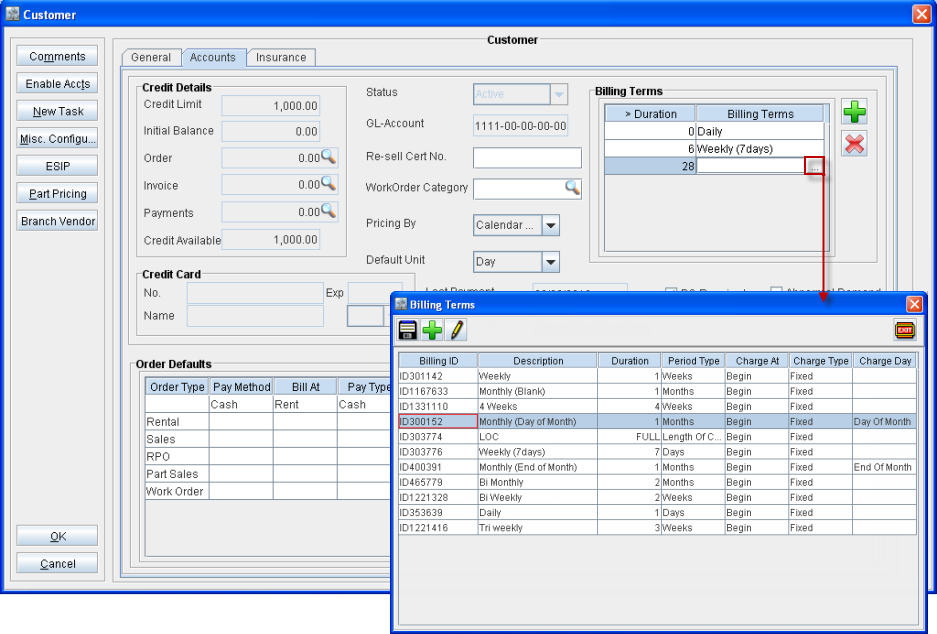
Once creation of Billing Terms definition is complete, click OK present in the window to Save and exit Customer Edit window, as shown in Figure 1.2.
Figure 1.2
Implementation of Billing Terms based on Order Duration from within Order
On creating a periodic billing Rental order or RPOs for a customer having duration based Billing Terms defined, system will apply the respective billing term as per the order duration to the order. The active / the billing term that is applied to the order will be displayed in red color in the Billing Term section, as shown in Figure 2.0.
Figure 2.0
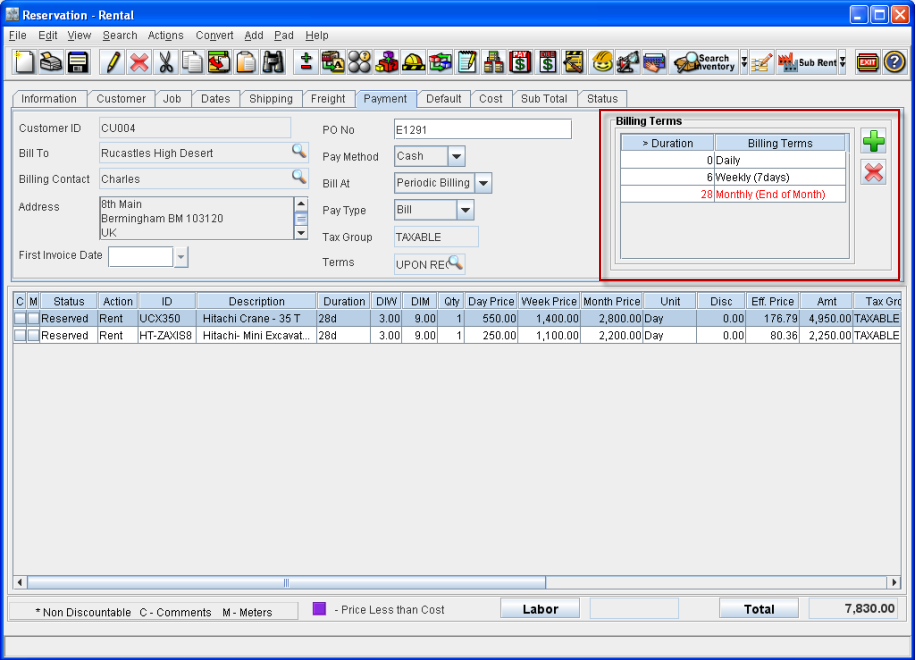
From within a Order Window, you can also create additional Billing Term definitions or modify existing Billing Term definition that is defaulted from the Customer Edit window. However, the new Billing term created (from within order window) or the modifications that is done to the billing term will be applicable only to the respective order.
On changing the Order Customer, system will display the confirmation prompt for changing the customer, and following selecting ”Yes” in the prompt displayed, the order customer will be updated along with the Billing Terms will be updated from the definitions of new order customer.
On increasing the order duration, system will update the Order Billing Term with the respective Billing Term definition present for the current order duration from the Billing Terms grid.
Illustration
Create a Customer [Cust#1] with Billing Term Definition Present as given below:
Duration > | Bill Terms |
0 | LOC |
6 | Weekly |
28 | Monthly |
Create a Rental Order [ORD#1] for customer [Cust#1] with the duration of 4 days starting from 23-Sep-2010 to 27-Sep-2010.
System will update the Order Billing Terms as LOC as order duration is between 1 and 6.
Add Items to the order as per the below given definition:
ITEM | Charge Start Date | Charge End Date | DIW | Week Price | Day Price |
Item#1 | 9/23/2010 | 9/24/2010 | 3 | 30 | 10 |
Item#2 | 9/23/2010 | 9/27/2010 | 3 | 30 | 10 |
Invoice the order. The Invoice start date will be 9/23/2010 and End date will be 9/27/2010.
On invoicing the order, system will generate the invoice for the order based on the Order Billing Terms as LOC (as Billing Term for duration > 1 is defined as LOC).
The invoice amount will be calculated as 40 (Item#1: 10, Item#2: 30)
Post the invoice.
Manually Increase the Order header level duration and line level duration by 10 days. System will update the Order Billing Terms as Weekly as the order duration is now more than 6 days.
The Order duration will be displayed as given below:
Charge Start Date | 9/23/2010 |
Charge End Date | 10/03/2010 |
Line Level Duration will be displayed as given below:
ITEM | Charge Start Date | Charge End Date | DIW | Week Price |
Item#1 | 9/23/2010 | 10/03/2010 | 3 | 30 |
Item#2 | 9/23/2010 | 10/03/2010 | 3 | 30 |
Invoice the Order. On invoicing the order, system will generate the invoice with start date as 09/28/2010 and End Date as 10/03/2010 for the item lines as given below:
| Charged Date Range |
| ||
Item | Start Date | End Date | Amount | Comments |
Item#1 | 9/24/2010 | 10/03/2010 | 50 |
|
Item#2 | 9/30/2010 | 10/03/2010 | 30 |
|
The total amount on the generated invoice will be 80 and the Order Total will be 120.
Post the Invoice. On posting the invoice system will extend the charge duration by weekly duration for the item lines.
On Invoicing the Order system will verify whether the duration of the order has been increased. If increased, then the respective Billing Term will be considered from the Billing Terms grid for the order and following the order will be invoiced.