
Parts Fill Rate Report
Reference No: 21180
(V 01.00.94-00)
Table of Contents
Parts Fill Rate Report
Details
In Report Module > Inventory, on selecting the option Parts Fill Rate, the Part Fill Rate Report options dialog will be displayed. using which the Part Fill Rate report can be generated, as shown in Figure 1.0.
Figure 1.0
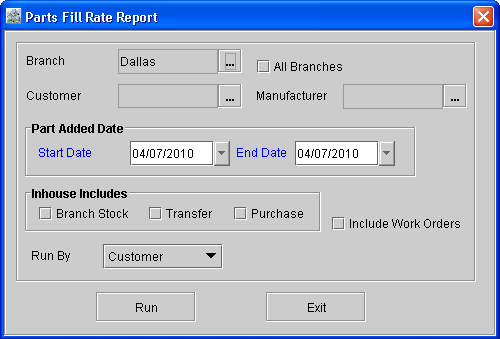
On generating the report based (based on either ”Customer” / ”Customer by Parts”, system will generate the reports grouped by branch and manufacturer.
On change of manufacturer in the lines displayed in the report, system will display the sub total based on branch and manufacturer.
Parts Fill Rate Report Options
Option | Description |
Branch | Selecting this option will generate the report for a selected branch. |
All Branches | Selecting this option will generate the report for all branches |
Customer | Selecting this option will generate the report only for a selected customer. If no customer is selected, then the report will be generated for all the customers. |
Manufacturer | Selecting this option will generate the report only for a selected manufacturer. If no manufacturer is selected, then the report will be generated for all the manufacturers. |
Start Date and End Date | The date range filter option can be used to generate the report having the Part Added Date (Date on which part is added to the order) between a selected date range. |
Branch Stock | On selecting this option, system will consider the Parts which are filled on the order using the stock available in the current branch while generating the report. |
Transfer | On selecting this option, system will consider the Parts which are filled on the order using via Transfer Orders, while generating the report. |
Purchase | On selecting this option, system will consider the Parts which are filled on the order via Purchase Orders while generating the report. |
Include Work Orders | Selecting this option system will consider the Work Orders for generating the report. |
Run By | The Run By on field can be used to select the option by which the report has to be generated. You will be able to generate the report either based on ”Customer” or ”Customer by Parts” |
Parts Fill Rate Report field information (when generated based on "Customer")
Field | Description |
Header Level Field | |
Branch | Displays the ID of the branch as selected in the Report options dialog, it is the ID of the Branch for which the report is generated. |
Customer | Displays the Customer for which the report is generated. If no customer is tagged in the report options dialog, then this field will be blank. |
Manufacturer | Displays the Manufacturer for which the report is generated. If no manufacturer is tagged in the report options dialog, then this field will be blank. |
Start Date and End Date | The Date Range for which the report is generated as selected in the report options dialog. |
Inhouse includes | Displays the In House options selected in the Report options dialog like Branch Stock / Transfer / Purchase. If none of the options are selected then this field will be updated as All. |
Includes Work Orders | This field will be updated with either Yes or No. Yes will be updated, if Includes Work Orders was selected in report options dialog. No will be updated, if Includes Work Orders was not selected in report options dialog. |
Run By | This field will be updated with either Customer or Customer by Parts. Customer will be updated, if customer is selected in the Run By option. Customer by Parts will be updated, if customer by parts is selected in the Run By option. |
Run Date | Displays the date on which the report was generated. |
Grid Level Fields | |
Customer ID | ID of the customer from Part Sale Order, Work Order in which the part is added. Note: For Work Order Segment, Segment Customer ID will be considered. |
Customer Name | Name of Customer from Part Sale Order, Work Order in which the part is added. Note: For Work Order Segment, Segment Customer Name will be considered. |
Call | Total count of occurrences of the part with the same manufacturer in all orders irrespective of whether the parts are T-Reserved /Purchase assigned /Not-available.
|
% of Calls | Percentage of total calls for the line in comparison to all other lines. The value for % of calls will be calculated as: Line level call value/sum of all line level calls of this manufacturer) *100. |
Filled Calls | Number of calls (from ’Calls’ above) that were filled 100% , based on the filter options (Branch Stock/Transfer/Purchase) selected in the report options,
|
% of Filled Calls | Percentage of total filled calls for the line in comparison to all other lines. The value for % of Filled calls will be calculated as: Filled Calls Value / Line level call value) * 100. |
Demand Qty | Total quantity of parts in all orders (including not-available lines) |
Filled Qty | Total quantity of parts reserved for the part from the calls.
|
% of Filled Qty | The value for % Filled Qty will be calculated as: (Filled Qty/Demand Qty) * 100. |
Net Sales | Total Line level amount excluding tax and discount. |
% Total Sales | (Net sales/sum of net sales for line level manufacturer) * 100. |
Parts Fill Rate Report field information (when generated based on "Customer By Part")
Field | Description |
Header Level Field | |
Branch | Displays the ID of the branch as selected in the Report options dialog, it is the ID of the Branch for which the report is generated |
Customer | Displays the Customer for which the report is generated. If no customer is tagged in the report options dialog, then this field will be blank. |
Manufacturer | Displays the Manufacturer for which the report is generated. If no manufacturer is tagged in the report options dialog, then this field will be blank. |
Start Date and End Date | The Date Range for which the report is generated as selected in the report options dialog |
Inhouse includes | Displays the In House options selected in the Report options dialog like Branch Stock / Transfer / Purchase. If none of the options are selected then this field will be updated as All. |
Includes Work Orders | This field will be updated with either Yes or No Yes will be updated, if Includes Work Orders was selected in report options dialog No will be updated, if Includes Work Orders was not selected in report options dialog |
Run By | This field will be updated with either Customer or Customer by Parts Customer will be updated, if customer is selected in the Run By option Customer by Parts will be updated, if customer by parts is selected in the Run By option |
Run Date | Displays the date on which the report was generated. |
Grid Level Fields | |
Part ID | ID of the Parts (Multiple occurrences of a part on an order will be displayed as one line in the report). |
Part Name | Name of Part which is considered in the report |
Call | Total count of occurrences of the part with the same manufacturer in all orders irrespective of whether the parts are T-Reserved /Purchase assigned /Not-available.
|
% of Calls | Percentage of total calls for the line in comparison to all other lines. The value for % of calls will be calculated as: Line level call value/sum of all line level calls of this manufacturer ) * 100 |
Filled Calls | Number of calls (from ’Calls’ above) that were filled 100% , based on the filter options (Branch Stock/Transfer/Purchase) selected in the report options,
|
% of Filled Calls | Percentage of total filled calls for the line in comparison to all other lines. The value for % of Filled calls will be calculated as: Filled Calls Value / Line level call value)*100 |
Demand Qty | Total quantity of parts in all orders (including not-available lines) |
Filled Qty | Total quantity of parts reserved for the part from the calls.
|
% of Filled Qty | The value for % Filled Qty will be calculated as: (Filled Qty/Demand Qty) * 100. |
Net Sales | Total Line level amount excluding tax and discount. |
% Total Sales | (Net sales/sum of net sales for line level manufacturer) * 100. |