VFS Authorization for first time WorkOrder invoicing where invoice amount is positive
Details
Invoicing an Order in CR2, which has the payment being processed through VFS, requires some pre-validation and an authentication from Volvo Finance as well.
The VFS Authorization can happen both – Automatically (by Invoking CR2PS Service) and Manually (by entering the Authorization code received from VFS).
In both cases, CR2 only proceeds to create a payment record and generates the invoice. Subsequently, CR2 stores the authorization number with the invoice and include it in invoice history screens and reports.
Sample Workflow
-
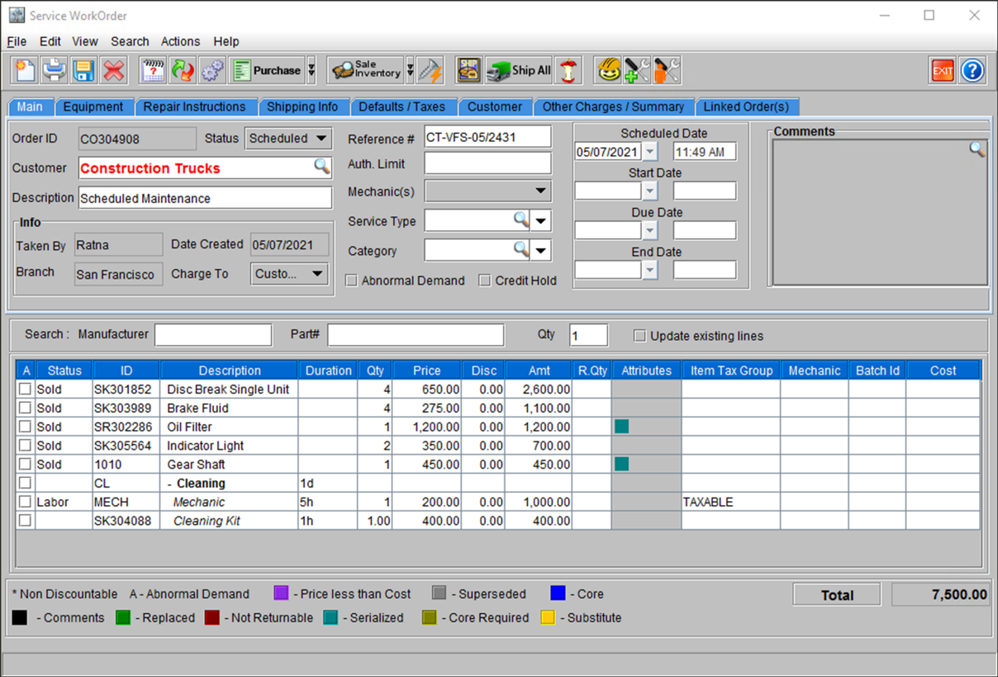
To begin Invoicing the Order, complete the ‘Fill and Ship’ process and ensure all Items, Assets, Misc. etc. are showing ‘Sold/Out’ status.
Figure 25: Order ID [CO304908] is in Schedule status, with all Items in ‘Shipped’ status
-
Click the Invoicing button.
At this step CR2 conducts various Pre-Invoicing validations. Ensure all necessary values are entered. For Example: Enter Profit Center and Payment Type in the Defaults/Taxes tab.
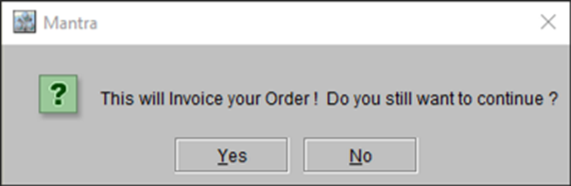
Figure 26: Confirmation prompt while Invoicing an Order
-
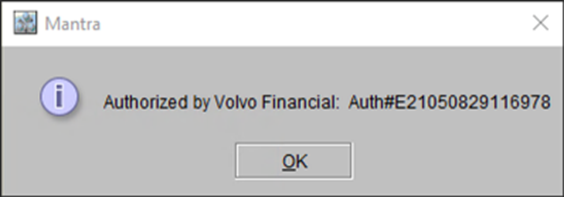
Click the Invoicing button. CR2 conducts an Invoice Authorization with VFS in the background and receives an Auth Code. The same is displayed in a message box, if and once the Authorization goes successfully.
Figure 27: Invoice Authorization success message, along with Auth Code
-
If the auto-authorization fails or breaks due to technical issues, the system allows to manually enter the Authorization code, same as the process involved in getting the Pre-Authorization.
-
However, if even the manual authorization breaks, then the Order is not invoiced and CR2 returns to its original status (Schedule or Open).
-
Also, if the Order amount (See Figure 29, for Sample Order) is ZERO, CR2 will not request for an Invoice Authorization. However, the ZERO amount Invoice would be generated, but no Payment information would be linked to it (See Figure 30).
-
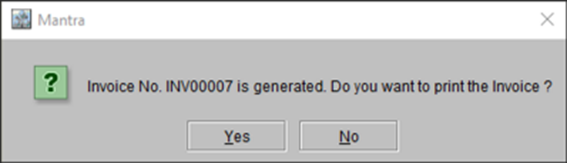
Click Ok. In the next screen, CR2 confirm that an Invoice is generated and displays the Invoice Number in a message box.
Figure 28: Invoice generation success mMessage, along with Invoice#
-
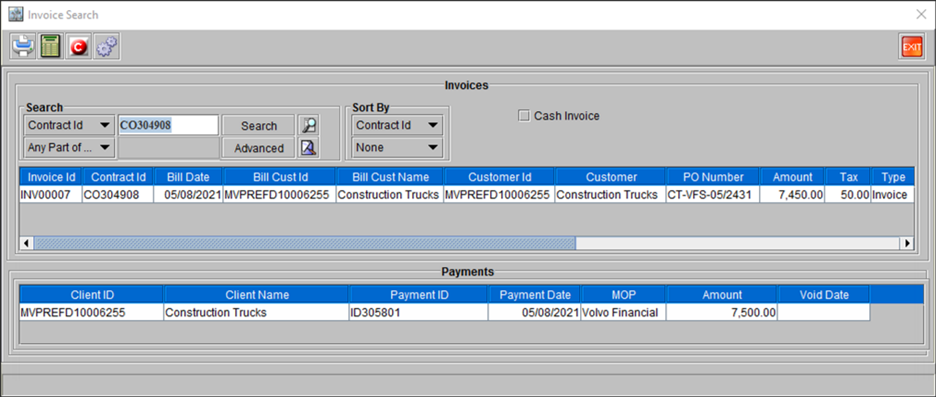
Go to Search > Invoices, and search the Invoice using either the Order ID [CO304908] or Invoice ID [INV00007]. The window below displays the Invoice and Payment information. Since the payment was made through Volvo Financial, the same is shown under MOP (Mode of Payment) along with a Payment ID, which is used by both CR2 and VFS to track the payment/transaction for any specific Order.
Figure 29: Invoice and Payment information window
-
If an Order with the total amount as ZERO is invoiced, the system displays a prompt as shown in Figure 30.
Figure 30: Order ID [CO304908] with total amount ZERO
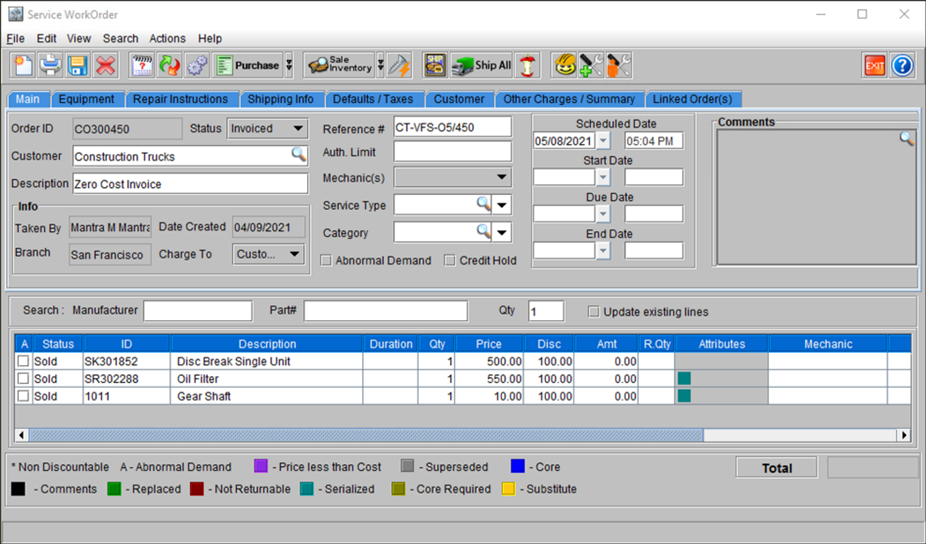
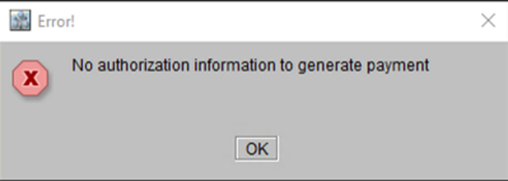
Figure 31: Notification window when Payment Auth is done for Zero Order.
-
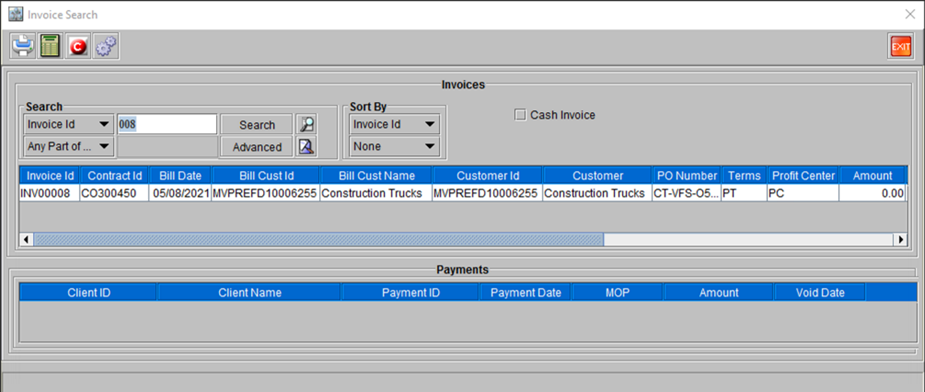
Since the total Amount on the invoiced Order is ZERO, no Payment Authentication is sought. And the same is shown blank in the Invoice and Payment information window as shown below.
Figure 32: Invoice and Payment information window for Zero Amount Order