
Authorizing all Unauthorized Invoices and validating them while posting
Details
An Unauthorized invoice refers to all the interim invoices that gets created automatically, when periodic billing is in effect for an Order. Since in such case only the first invoice is formally and manually generated and a VFS Pre-auth is sought for it.
If any of subsequent periodic billing invoices does not have a Pre-auth taken for them, it might be a problem during the batch posting. So, system has enabled all such interim (unauthorized) invoices to automatically get a Pre-auth, when any or all of them are a part of batch posing process.
Note: Auto authorization will happen only when "Create Export Files" Checkbox is selected, during the batch posting.
Prerequisite: To simulate this feature, create an Order which has Periodic Billing, and no Invoice has been generated.
Sample Workflow
-
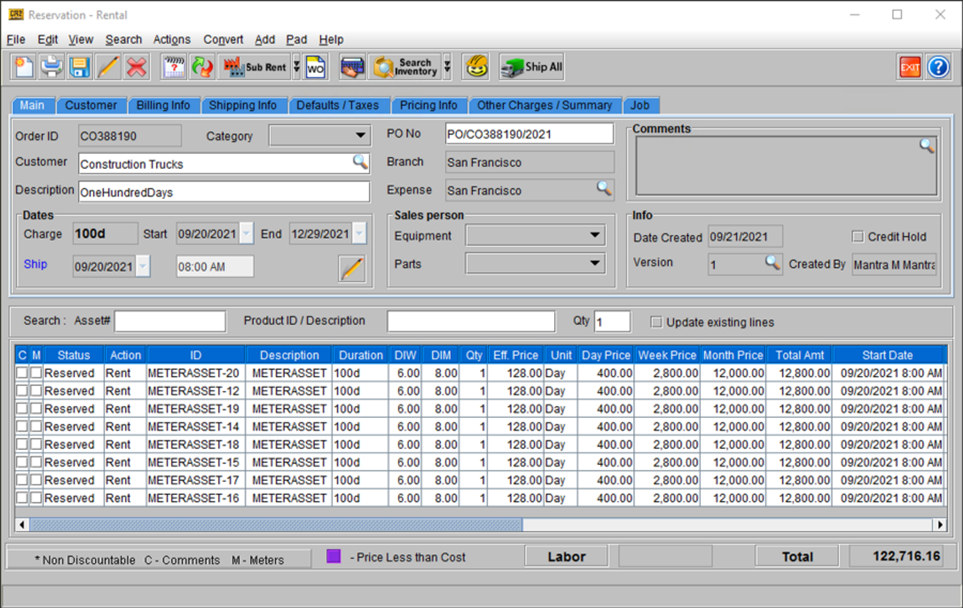
Let’s say we begin with Order [CO388190] with 8 units of one item added. The item is being billed on basis of per unit per week. The Contract Order is for 100 days (14 weeks and 2days) charged weekly.
Figure 67: Periodic Billing Order, with ID [CO388190]
-
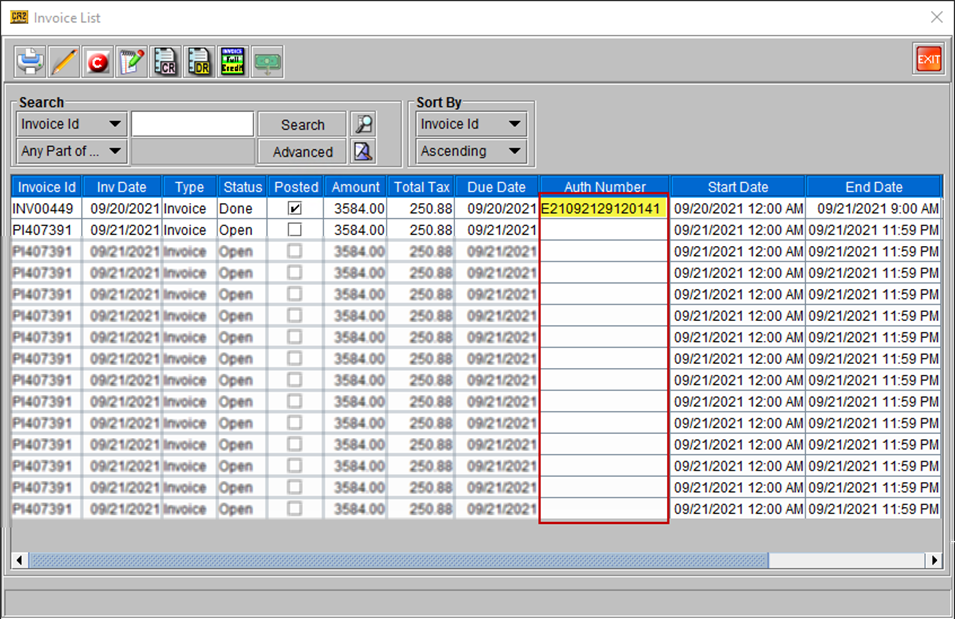
At time of invoicing, the above order automatically creates 15 invoices in the system deemed to be raised subsequently, on specific dates. But the VFS Pre-Auth is taken only for the first invoice. As shown in the screenshot (on next page) the VFS column for all other invoices is blank.
Figure 68: Invoices for the Order ID [CO388190]
-
Subsequently whenever any invoice is added to a batch for posting the system automatically seeks a VFS authorization in the backend, and proceeds with posting the invoice.
-
This happens since the VFS authorization for first invoice in the sequence was approved manually and system understand these rest of the invoices are related.
-
This reduces the dependence of seeking a VFS authorization manually, for each invoice at the end of every billing cycle.
-
-
To know for what all invoices in your system, an Auth number is not mentioned; do a blanket search for all Orders in the Invoice list window, for Orders with Pay Type as ‘Volvo/VFS’. Sort the ‘Auth Number’ column to show ‘blank rows.’
-
To get Auth number for any row, click on it to select the row, and then click the VFS button. The VFS auth number is displayed on the screen in a prompt.
-
You can also seek VFS Auth for multiple invoices in one step as well. But in this case, the system does not display a prompt on screen with the Auth number.
-
In either case, the system automatically updates the Auth Number in the Invoice List window.
-
If the system fails to get VFS auth for a specific Invoice, the system removes the line from Invoice list window, and proceeds with processing rest of the batch. Also, system does not display any prompt on the screen.
-
Also, a ‘Get VFS Authorization’ button has been added to the following screens, to facilitate a manual VFS authorization when all invoices related to an Order, or a Customer are being listed.
-
Accounts > Search > Invoices
-
Order > Edit View > invoices
-
Invoicing module > Search Invoices