Reference No: 24853 BCUG186844
(V 02.00.14-00)
The Asset NBV History of a Trade-in Item gets recorded in the system as explained in the sample workflow given below.
Sample Workflow
Given below is a sample workflow.
-
Create an Equipment Sale Order - [SO#1].
-
Add an Item’s Asset [Asset#1] to SO#1. Let its price be 5000$ (same as its cost price).
-
Add another Item [Item#2] to SO#1. Let its price be 2000$ (same as its cost price).
-
Right-click on the order item line for Item#2 and select Trade-In.
-
This marks it as a Trade-In item and the cost changes to a negative value (in this case it becomes -2000$).
-
Double-click on the order item line for Item#2. This opens up the Trade-In Cost Adjustment screen.
-
Enter an Over Trade of 1000$ within the Over/Under Trade field and click OK.
-
Double-click on the order item line for Asset#1, choose Cost adjustment and click OK.
-
This opens up the COGS Adjustment screen.
-
Enter an Over Trade of 1000$ within the Over/Under Trade field and click OK.
-
Click the Receive Trade-In Items icon and receive the Trade-In Item’s (Item#2’s) Asset (say Asset#2). Thus Asset#2 is the Trade-In asset in the Sale Order SO#1.
-
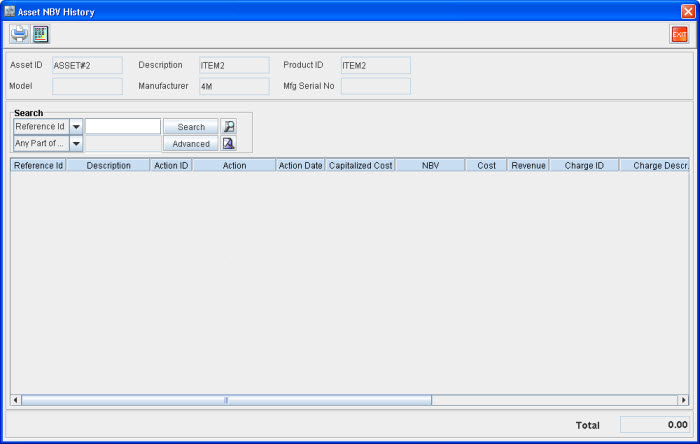
Check the Asset NBV History of the Trade-In Asset (Asset#2). It will be as shown in Figure 1.0.
Figure 1.0 Asset NBV History of Trade-in Asset (Asset#2) After Receiving
-
Select Actions menu>Ship All Items/Parts and ship the items in the order SO#1.
-
Invoice the order SO#1 and post the invoice in the Great Plains format.
-
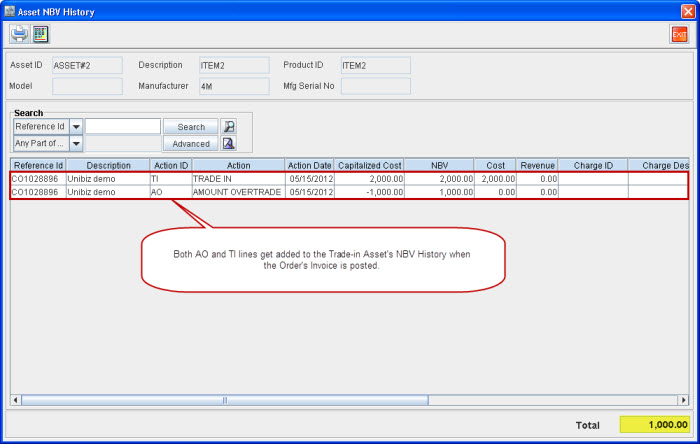
Check the Asset NBV History of the Trade-In Asset (Asset#2). It will be as shown in Figure 1.1.
-
Both the entries in the Trade-In Asset’s NBV History with Action IDs of TI (Trade-in) and AO (Amount Overtraded) will get added to it only on posting the order’s invoice.
The entry with Action ID TI will only get added to the NBV History of a Trade-In Asset only after the order to which it is added is invoiced and that invoice is posted.
Figure 1.1 Asset NBV History of Trade-In Asset (Asset#2) after Posting Invoice
-
Cancel the Invoice for SO#1 and post the Credit Memo generated in the Great Plains format.
-
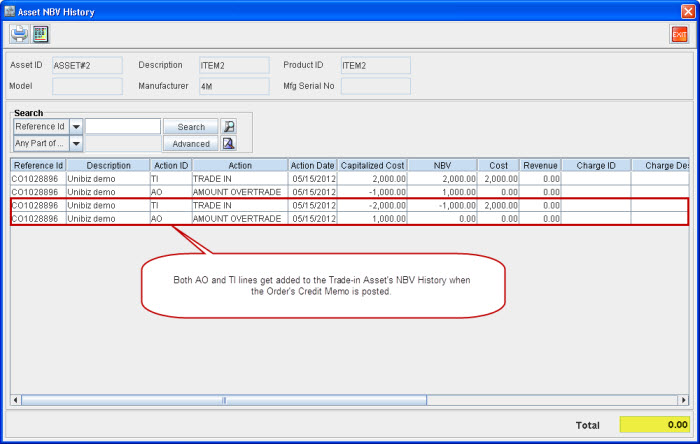
Check the Asset NBV History of the Trade-In Asset (Asset#2). It will be as shown in Figure 1.2.
The reversal entries for the Trade-In Asset with Action IDs of both TI and AO will get added to the Asset NBV History on posting the order’s Credit Memo, to which it is added. Thus 2 entries will get added with Capitalized Costs of -2000$ and 1000$ respectively. The Total will be 0$.
Figure 1.2 Asset NBV History of Trade-In Asset (Asset#2) after Posting Credit Memo
-
Re-invoice the order SO#1 and post the new invoice in the Great Plains format.
-
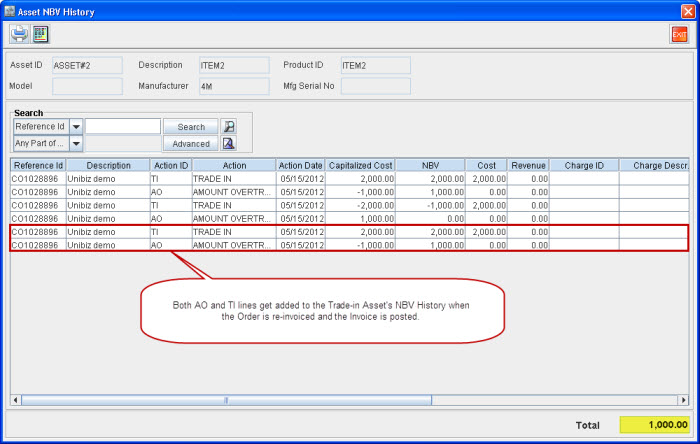
Check the Asset NBV History of the Trade-In Asset (Asset#2). It will be as shown in Figure 1.3.
The entries reflecting the Trade-In item’s with Action IDs of both TI and AO will get added to the Asset NBV History on posting the new invoice for the order. Thus 2 entries will get added with amounts of 2000$ and -1000$ respectively. The Total will be 1000$.
Figure 1.3 Asset NBV History of Asset (Asset#2) after Re-invoicing and Posting New Invoice