
Reference No: 25001
(V 02.00.14-00)
Details
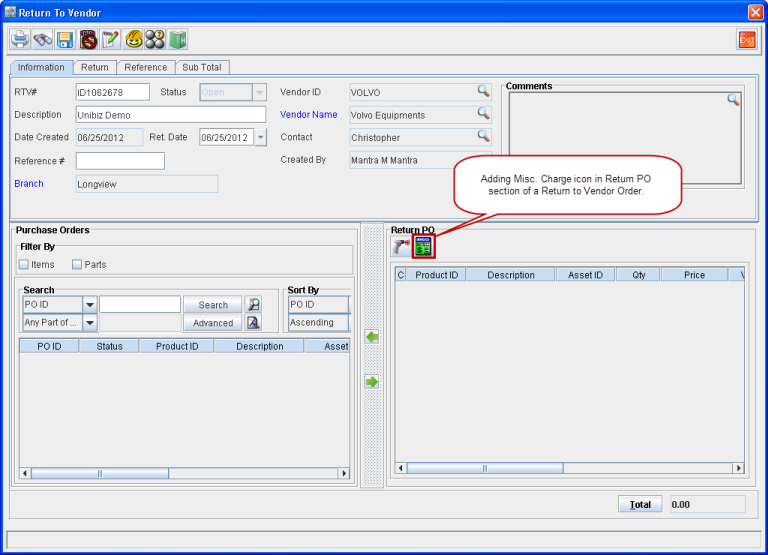
In CR2, a new icon named Add Misc. Charges is added in the Return PO section of the Return to Vendor order window, as shown in Figure 1.0.
Figure 1.0 Add Misc. Charges Icon in Return PO Section of Return to Vendor Order
Adding Misc. Charges to a Return to Vendor Order
Step-by-step instructions for adding a Misc. Charge to a Return to Vendor order are:
-
Tag a Vendor in the Return to Vendor order in the Vendor Name field.
-
Click the Add Misc. Charges icon within the Return PO section. This opens up the Items search window where you can search and add only Misc. Charges.
-
Search and select a Misc. Charge and then click the Select icon. This adds the seleted Misc. Charge to the Return to Vendor order under the Return PO section. The order Total will also get updated based on the charge for the Misc. Charge added.
You have successfully added a Misc. Charge to a Return to Vendor Order.
Note: An added Misc Charge can be deleted from the Return PO section of a Return to Vendor Order by selecting it and clicking the Remove 