
Reference No: 24456
(V 02.00.10-00)
Table of Contents
Details
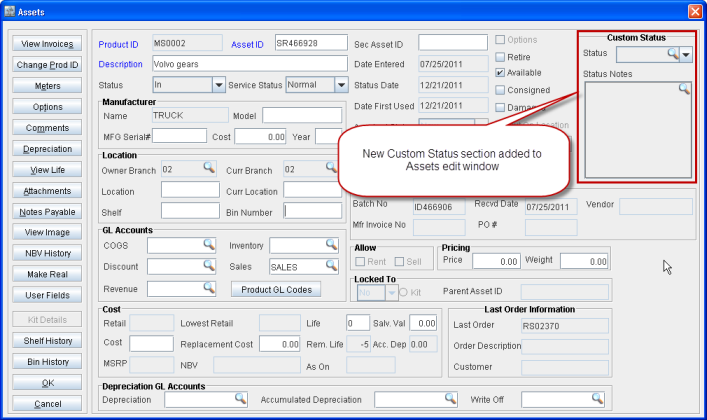
In CR2, you can now create and use custom statuses for Assets. Two new fields are provided within the section named Custom Statuses in the Assets edit window, to enable this feature. They are the Status drop-down list and the Status Notes text box, as shown in Figure 1.0.
Figure 1.0 Custom Status Section with Status Drop-down List and Status Notes Text Box in Assets Edit Window
Status Drop-down List
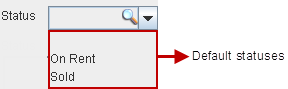
The Status drop-down, lists out the available statuses, which can be assigned to the Asset, as shown in Figure 1.1.
Figure 1.1 Status Drop-down List
-
For a newly created Asset, by default, this field will have no value (blank status).
-
There are two additional built-in statuses, which are non-editable, namely:
-
On Rent – System sets this status for the Asset if it is out on rent. This can’t be changed to any other status if the Asset is out on rent.
-
Sold – System sets this status if the Asset is sold. This can’t be changed to any other status if the Asset is sold.
-
-
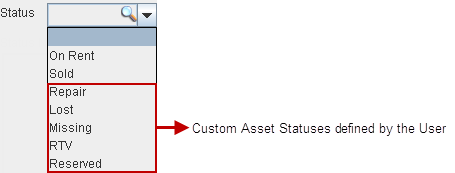
It also lists the custom statuses, as defined by you, which can be assigned to the Asset. The custom statuses can be assigned to an Asset only if it is neither out on rent nor sold.
-
When an Asset which is out on rent and as such has status On Rent is returned, then the status within the Status field changes to blank. You can then change this to any other custom status.
-
When an Asset which was sold and as such has status Sold is returned, then the status within the Status field changes to blank. You can then change this to any other custom status.
Defining New Custom Status
You can define new custom statuses, as need be. The custom statuses so defined can then be assigned to Assets.
The steps for creating new custom status are:
-
Click on the importable button next to the Status drop-down list. This opens up the Custom Status List window.
-
Click on the Add icon to add a new custom status. This will add a new blank line within this window, with next possible consecutive number as the position number.
-
Enter the new status’s name in the blank line added, under the Name column. You may also edit the position number in the Position field, if need be.
-
Click on the Save icon to save the new custom status created and close the Custom Status List window.
Re-open the Custom Status List window, by clicking on the importable button within the Status field, to view the newly created custom status along with the pre-defined statuses listed within it, as shown in Figure 1.2.
Figure 1.2 New Custom Status Listed within Custom Status List Window
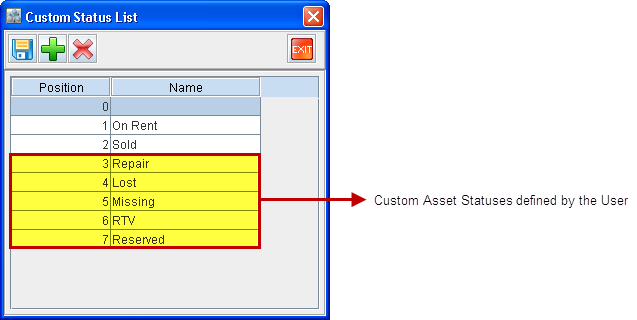
The Custom Status List window lists all the available statuses.
-
It lists out the pre-defined statuses namely Blank, On Rent and Sold which can’t be deleted or modified.
-
It also lists out the new custom statuses, as defined by you, in the order of the Position given to it. The custom statuses will be displayed after displaying the built-in statuses.
-
To edit an existing custom status, double-click on it. Then click on Save icon to save the changes made.
-
Select a custom status and then click on the Delete icon to delete the custom status.
Figure 1.3 Custom Statuses Listed in Status Drop-down List
Status Notes Text Box
The Status Notes text box displays the relevant details depending upon the status selected within the Status field.
-
For a newly created Asset, by default, Status Notes text box will be blank.
-
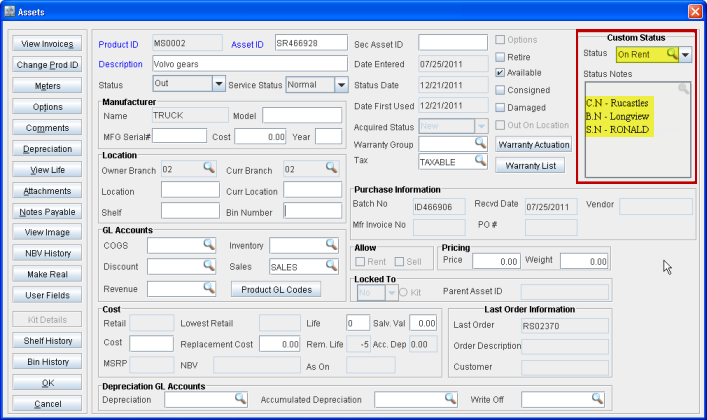
If the selected status is either On Rent or Sold then this field displays the Company Name (C.N), Branch Name (B.N) and Sales Person Name (S.N) as shown in Figure 1.4. This can't be modified and the importable button will be disabled in this field.
Figure 1.4 Information Displayed within Status Note Field when Status is On Rent
-
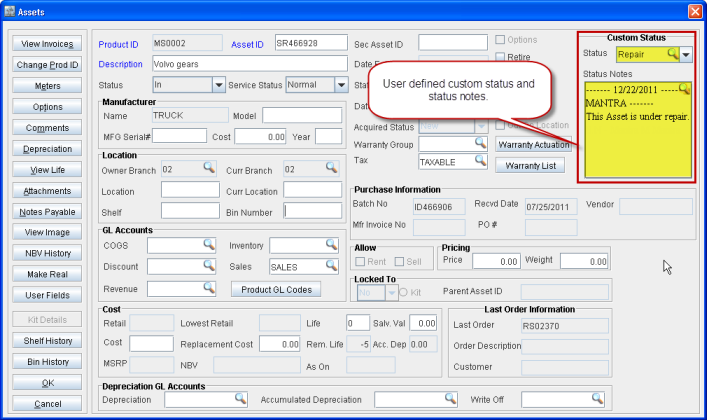
If a custom status is selected within the Status field, then the comments provided by you using the importable button present here gets displayed in the Status Notes text box, as shown in Figure 1.5.
Figure 1.5 Custom Status within Status and Custom Comments within Status Notes Fields
-
If the status selected within the Status field is later changed by the system to either On Rent or Sold then this field removes the custom information and displays the Company Name (C.N), Branch Name (B.N) and Sales Person's Name (S.N) instead.
-
If an Asset’s status is changed from either On Rent or Sold to blank (when it gets returned, the system changes the Status field value to blank) then the information displayed within the Status Notes text box is also removed. Thus the Status Notes text box also becomes blank.