
Reference No: 19670
(V 01.00.91-00)
Table of Contents
Support for Work-in-Progress Report
Details
Work-in-Progress Report can be used to view only the un-invoiced Order Lines of Work Order and Part Sales Order. This report can be generated either for Inventory In Process as 'Service' which will display the details of the Work Orders or can be generated for Inventory In Process as 'Parts' which will display the details of the Part Sales Order. The generated Inventory In Process: Service report will have Totals for Parts, Labors and Misc. And there will be a Grand Total at the end of each Segment. And the generated Inventory In Process: Parts report will have a Total line at the end of each Parts Sale Order.
Points to Note:
-
For Inventory In Process - Service report, Work Orders with statuses &endash; Estimate / Cancelled will not be considered.
-
For Inventory In Process - Parts report, Quote or Cancelled Parts Sale Orders will not be considered.
-
Returned Lines will not be considered.
-
Returned Core lines will be considered.
-
If the option - 'Summary' is selected, system will not display the details of the Parts, Labor and Misc., but only Total lines will be displayed.
-
If the option ’Only dispatched’ is selected, Ordered and Shipped Quantity columns will be same.
-
If the option ’Only dispatched’ is not selected, Shipped Quantity will be 0 for the lines other than dispatched.
Filtering the Report
The report can be filtered by:
-
Inventory In Process
-
Branch
-
All Branch
-
Customer
-
Detail/Summary
-
Only Dispatched
-
Order #
-
Segment #
Table 1.0 Work-in-Progress Report Filter Options
|
Options |
Descriptions |
|
Inventory In Process |
|
|
Branch |
On clicking on the ellipses button in the Branch field will open the Branch window, wherein on selecting a site, the report will be generated based on the selected site. |
|
All Branch |
Selecting the 'All Branch' check Box will generate the report for all the Sites. |
|
Customer |
On clicking on the ellipses button in the Customer field will open the Customer-Contact window, wherein on selecting a customer, the report will be generated based on the selected customer. |
|
Detail/Summary |
On selecting the option Detail or Summary, will generate the report based on the selected option. |
|
Only Dispatched |
On selecting the 'Only Dispatched' check box, only dispatched lines will be considered for the report. |
|
Order # |
On clicking on the ellipses button in the Order # field will open the Work Order Search window for the option Service and Order Search window for the option Parts, wherein on selecting an Order, the report will be generated based on the selected Order. |
|
Segment # |
On clicking on the ellipses button in the Segment # field will open the Segment Search window, wherein on selecting a segment, the report will be generated based on the selected segment.
|
To generate WIP Report
-
Access Report Module in CR2 Launch Pad
-
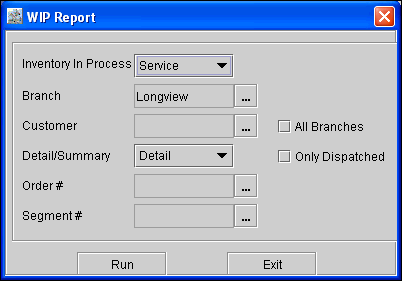
Select Inventory > WIP Report to display WIP Report Options dialog, as shown in Figure 1.0, where in you can define the options to generate the report.
Figure 2.0
-
Select the required filtering options.
-
Click Run to generate the Report.
Table 2.0 WIP Report (Inventory In Process: Service) Field Information
|
Fields |
Description |
|
Order Info. |
|
|
Work Order Num |
Displays the unique identification number of the Work Order. |
|
Segment Num |
Displays the unique identification number of the Segment. The column will be blank for Non-Segment lines. |
|
Br Num |
Displays the unique identification number of the Site. |
|
Cust Num |
Displays the unique identification number of the Customer. |
|
Cust Name |
Displays the name of the Customer. |
|
Category |
Displays the Category set in the Work Order header. The column will be blank if Category is not set in the Work Order. |
|
Date Opened |
Displays the start date of the Work Order. |
|
Status |
|
|
Estimate |
Displays the Authorized Limit of the Work Order Header level. This will display the value for the first header row for the particular Work order. It will be blank for all other header rows of this same work order. |
|
Equipment Info. |
|
|
Asset ID |
|
|
Make |
Displays the unique identification number of the Manufacturer of the Asset tagged as Unit . |
|
Model |
Displays the model of the Asset tagged as Unit . |
|
W/O Description |
|
|
Service Type |
|
|
Serial |
Displays the Mfg. Serial Number of the asset tagged as Unit. |
|
Meter |
Displays the Meter reading of the asset tagged as Unit. |
|
Parts |
|
|
MFR |
Displays the unique identification number of the Manufacturer of the Part. |
|
ID |
Displays the unique identification number of the Part. |
|
Description |
Displays the description of the Part. |
|
Date Added |
Displays the date in which the Part is added to the Work Order. |
|
Ordered |
Displays the ordered quantity of the Part. |
|
Shipped |
Displays the shipped quantity of the Part. |
|
Cost |
|
|
Sell |
Displays the Order Line level Price of the Part. |
|
Ext. Cost |
Displays (Cost * Shipped Quantity) |
|
Ext. Sell |
Displays (Sell * Shipped Quantity). |
|
GP |
Displays (Ext. Sell &endash; Ext. Cost). |
|
GP% |
Displays ((GP / Ext. Sell) * 100). |
|
Labor |
|
|
Emp ID |
Displays the Employee ID’ set in the MLE line for the Labor lines linked to Master Labor Entry. |
|
ID |
Displays the unique identification number of the Labor. |
|
Description |
Displays the description of the Labor. |
|
Labor Date |
|
|
Charge |
Displays the ’Type’( ’Regular’, ’OT’ or ’DT’. ) set in the MLE line for the Labor lines linked to Master Labor Entry. For other lines, it will be blank. |
|
Hours |
Displays (Labor Line Duration in Hours * Quantity). |
|
Cost |
|
|
Sell |
Displays Order Line level Price. |
|
Ext. Cost |
Displays (Cost * Hours). |
|
Ext. Sell |
Displays (Sell * Hours). |
|
GP |
Displays (Ext. Sell &endash; Ext. Cost). |
|
GP% |
Displays ((GP/ Ext. Sell)*100). |
|
Misc. |
|
|
ID |
Displays the unique identification number of the Misc Charge. |
|
Description |
Displays the description of the Misc Charge. |
|
Date Added |
Displays the date on which the Misc Charge is added. |
|
Ordered |
Displays the ordered quantity of the Misc Charge. |
|
Cost |
This column will be blank. |
|
Sell |
Displays the Order Line level Price. |
|
Ext. Cost |
This column will be Blank. |
|
Ext. Sell |
Displays (Sell * Ordered Quantity). |
|
GP |
Displays (Ext. Sell &endash; Ext. Cost). It will be same as Ext. Sell as Ext. Cost is Blank. |
|
GP% |
Displays ((GP / Ext. Sell) * 100). This will be always 100% as Ext. Sell and GP are same. |
Table 2.1 WIP Report Inventory In Process: Parts) Field Information
|
Fields |
Descriptions |
|
Order |
Displays the unique identification number of the Parts Sale Order. |
|
Branch |
Displays the unique identification number of the Site. |
|
Cust ID |
Displays the unique identification number of the Customer. |
|
Customer |
Displays the name of the Customer. |
|
MFR |
Displays the unique identification number of the manufacturer of the Part. |
|
Part Number |
Displays the unique identification number of the Part. |
|
Description |
Displays the description of the Part. |
|
Status |
Displays the status of the Order line. |
|
Qty |
Displays the quantity of the Part. |
|
Cost |
|
|
Ext. Cost |
Displays (Cost * Qty). |
|
Sell |
Displays the Order Line level Price. |
|
Ext. Sell |
Displays (Sell * Qty). |