
Purchase orders will be closed when the vouchering process is complete
Vouchering
The vouchering process is the step necessary prior to batching the vendor’s bills to Quickbooks.
In order to voucher, the items in the purchase order must be received and approved
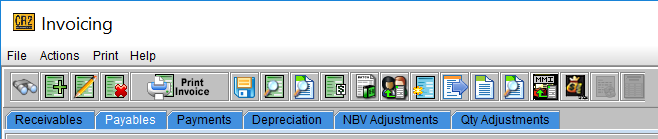
From the Invoicing module and with the Payables tab selected, click on the New Voucher icon 
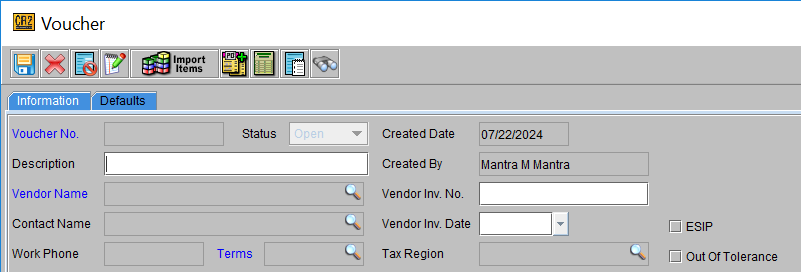
Enter information below on the Information tab
|
Field Name |
Description |
|
Description |
Identify the batch by entering INITIALS DD/MM/YY |
|
Vendor Inv. Date |
Enter the Invoice Date from the Vendor’s Invoice |
|
Vendor Inv. No. |
Enter the Invoice No from the Vendor’s Invoice |
|
Terms |
Enter the Terms applicable |
Click on the Defaults Tab
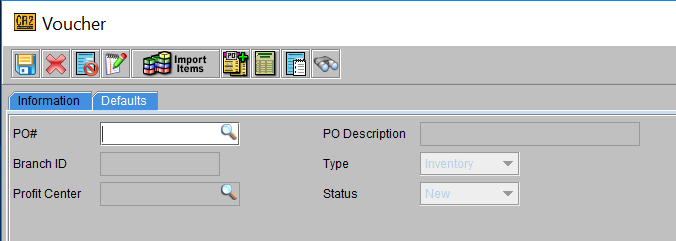
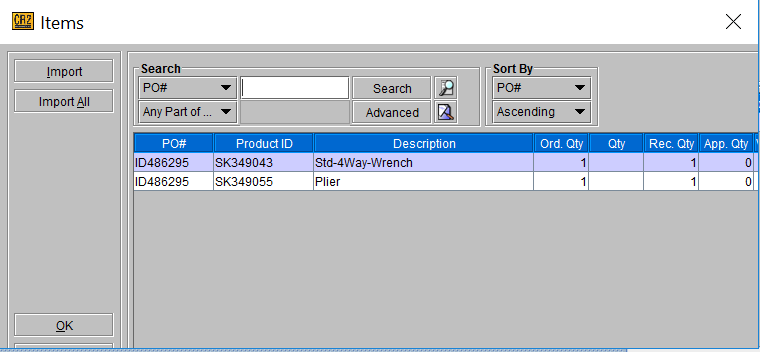
Click on the Import button to the right of PO# 
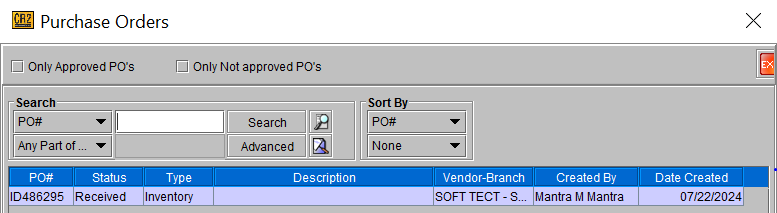
Select the items to voucher from the list below using the Import button or the Import All button
Note: only received and approved items will import
Click the Exit button 
Other buttons on the Voucher screen

To delete a product from a voucher, click on the Delete button 
To void a voucher, click on the Void button 
To enter a comment for the product, click on the Comments button 
To enter a comment for the Voucher, click on the Voucher Comments button 
To review on the Voucher’s distribution, click on the Distribution button 
Based on policies, the Approved button must be selected.
Note: if no policies are set up, the voucher needs no approval.
Once all items of a purchase order are in a voucher, the status of the purchase will be closed