
This feature allows you to import part numbers into CR2 Physical Inventory batches using a file, making it easier to perform cycle counts with smaller batches of part numbers.
Where it applies?
-
The Physical Inventory batch must be:
-
Of Type: Parts only
-
In status: Either "Open" or "In Process"
-
How to Use?
-
Open the Physical Inventory batch where you want to import parts
-
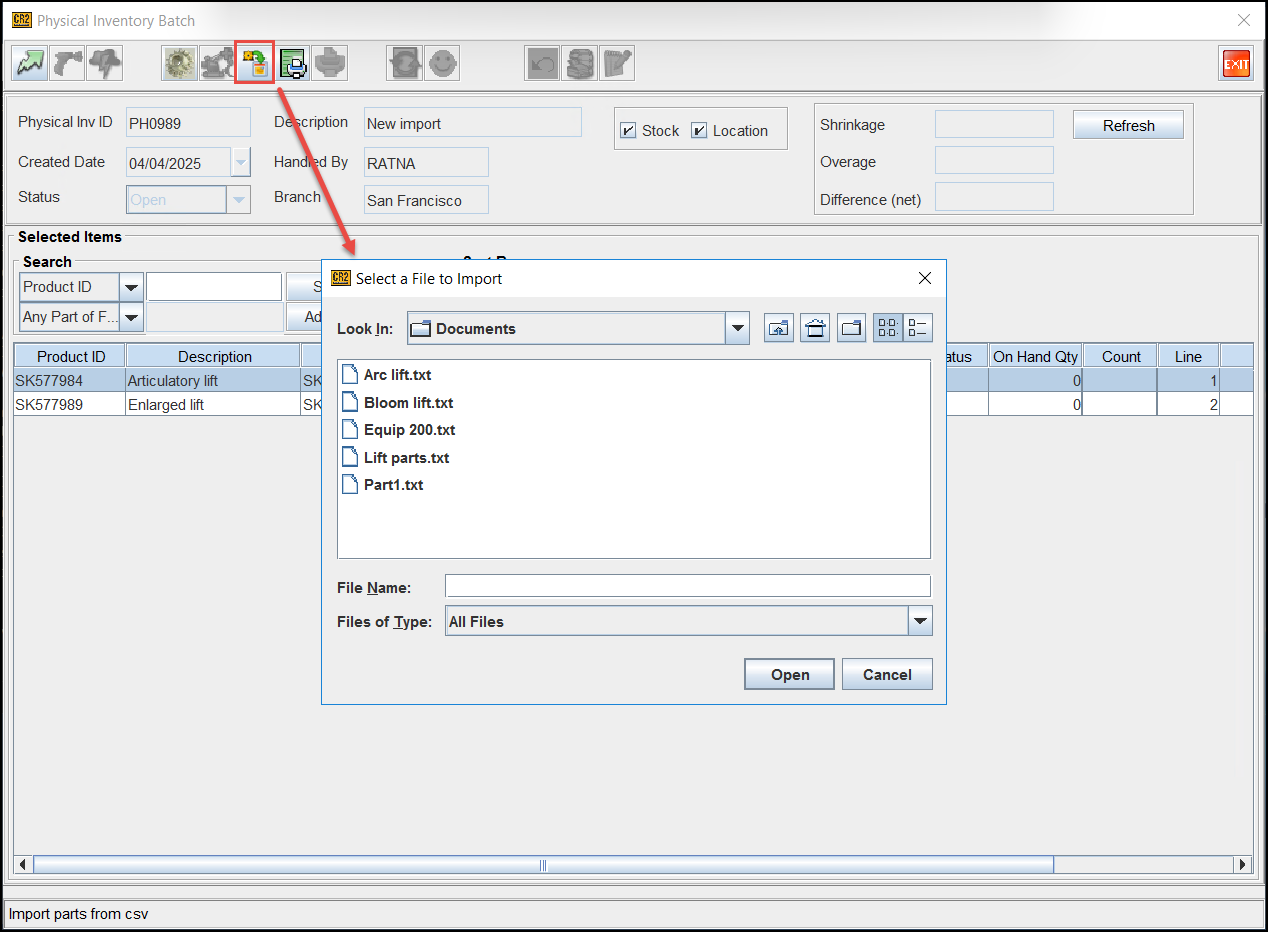
Look for the new import button on the Physical Inventory batch screen
-
Click the import button to open the file selection dialog
-
Select your file containing the list of Part IDs
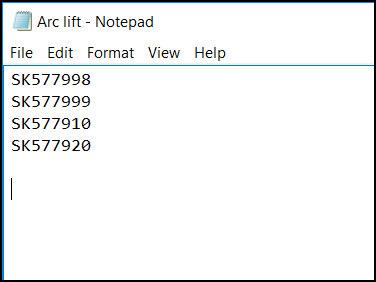
Ensure your file is in text format with extensions like .txt, .csv etc.
-
System Behavior:
If batch is in "Open" status:
-
You'll receive a prompt “Do you want to delete the existing Physical Inventory record from this batch?“ with two options:
-
Select "Yes" to clear all existing parts in the batch and add only the parts from your file
-
Select "No" to keep existing parts and add the new parts from your file
-
If batch is in "In Process" status:
-
No prompt will appear
-
System will automatically add new parts while keeping existing ones
-
Duplicate parts will be ignored
-
Important:
-
Duplicate Handling:
-
If a part ID from your file already exists in the batch, it will not be added again
-
No notification will be shown for ignored duplicate parts
-
-
Error Handling:
-
If your file is not in the text format, you'll receive an error message
-
If any Part IDs in your file don't exist in the CR2 database, you'll see an error list on screen
-