
Reference: 19326
(V 01.00.87-00) (V 01.00.88-00)
Details
Support has been now provided that in an Order, if the order line is linked to a Purchase Order, then the cost of the order line will be calculated based on the linked Purchase Order line.
Receiving Changes
-
On receiving the quantity for the linked Purchase Order line, system will not prompt any message for updating the back order lines for quantity received for P-Assigned lines and will update the linked Order line to Reserved or Sold (based on drop ship) internally.
-
On partially receiving the lines on the linked Purchase Order, system will split the linked order line into Reserved and P-Assigned quantity based on the received quantity. Later on receiving the remaining quantity in the Purchase Order, system will update the split P-Assigned line to Reserved based on the received quantity.
-
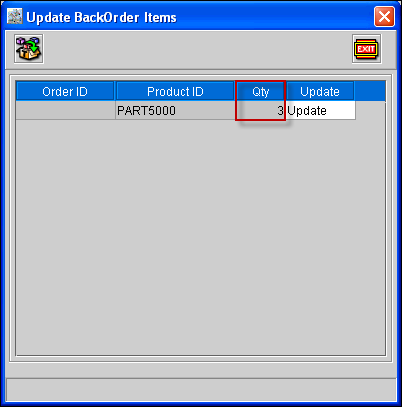
A new column 'Qty' has been now added in the Update Back Order Items dialog opened while updating the backorder lines of an Order which will display the received quantity of the Purchase Order as shown in Figure 1.0.
Figure 1.0 New column 'Qty' in the Update Back Order Items
-
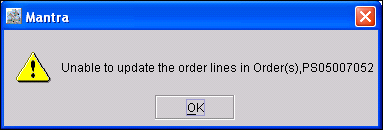
If the user is not able to update the P-Assigned lines and the Back Order quantity in the Order then system will Prompt a message "Unable to update the Order lines in Order(s) [Order IDs]".
Figure 1.1 Unable to update the Order lines in Order(s) [Order IDs] prompt a message
Right Click > Reserve
-
On reserving all the P-Assigned line or the split P-assigned lines in a Order through right click' reserve' option by using some other stock from the Order site , system will turn those P-Assigned line to 'Reserve' by de- linking the lines with the Purchase Order line. The PO line In the Purchase Order will not be cancelled and will remain as an independent line on the Purchase Order which can be used on some other order as a back order quantities.
-
If the user tries to Reserve a P-Assigned line, system will prompt the message "Line is linked to PO, Reserve may remove the PO link if there is no received qty on the PO line. Continue?" with the option 'Yes' and 'No' to reserve the line by removing the link with the Po line.
Right Click > Not Available/ Backorder/Delete
-
For the P-Assigned lines in an Order, on selecting right clicking option Not Available/ Backorder/Delete for the full quantity of the PO line of the linked Purchase Order, system will cancel the PO line in the Purchase Order and PO link will be removed from the Contract.
-
For the P-Assigned lines in an Order, on selecting right clicking option Not Available/ Backorder/Delete for a partial quantity of the PO line of the linked Purchase Order, system will reduce the quantity on the linked PO line in the Purchase Order. In case of not available/Backorder the PO link will be removed from the Contract.
-
For the Reserved lines in an Order, on selecting right clicking option Not Available/ Backorder/Delete for the full quantity or partial quantity of the PO line of the linked Purchase Order, system will delete or change the status of the Order line (s) to Not available and those selected linked PO line will become independent, which can be used on some other order.
Calculating Cost
-
In an Order, if an item is sold, then system will consider the received line cost for the item line based on the FIFO.
-
For all other status other then sold, system will consider the Replacement cost of the Item.
-
If the order line is linked to a Purchase Order, then system will consider the PO Line cost for the item line.
-
If the PO line is received, then system will consider receive line cost for the item line based on the FIFO.
-
If the PO line is vouchered, then system will consider vouchered cost for the item line.
-
If the PO linked line is sold, then system will consider the PO linked receive line cost.(Voucher Cost if Vouchered).
-
All the above calculation of the cost is done only for Sell Items and Parts and will be displayed in the Cost tab of the Orders, Work Order analysis window of the Work Order, when the price is less then the cost and in the Dump files.
Allowing to change the unreceived quantity on Purchase Order
-
In a linked Purchase Order, the user will be able to change the Ordered quantity even though there are received, Approved and Vouchered quantity, wherein the user will not be able to enter the quantity less then the total P-Assigned quantity on the Order and maximum of Received, approved and Vouchered quantity.
-
In an Order, on selecting the right Clicking option Delete/ Not Available/ Back Order for the split P-Assigned lines, system will reduce the P-Assigned quantity from the linked Purchase Order so that the quantity in the Po line will not be less than the maximum of Received, Approved, and Vouchered quantity.
Migrate Cut
-
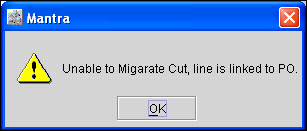
If an Work Order line is linked to a Purchase Order, then system will not allow the user to migrate cut the order line and will display a message "Unable to Migrate Cut, line is linked to PO" as shown in Figure 1.2.
Figure 1.2 Prompt message "Unable to Migrate Cut, line is linked to PO"
Order Locked at the time of Updating contract line
In an Order, on reserving the P-Assigned line by selecting the right clicking option 'Reserve' , and then in the linked Purchase Order line, if at least one received quantity exists which is not used in any Order, then the link between the Order and the Purchase Order will be maintained.
Back Order Qty
In an Order, if the P-Assigned quantity is reserved by using other stock from the Order site, then the linked Line qty on the Purchase Order will become independent, which can be used by the user as back Order quantity in an another Order.
Deleting Order link on PO line
In an Order, on selecting the right clicking option Delete/NotAvailable/BackOrder/Reserve for all the PO linked lines, system will remove the link between the Purchase Order and the Order. And in the Purchase Order if any changes is done to the Ordered quantity, system will not display the message for Invalid Contract line Reference.
Support to reduce approved quantity
-
In a Purchase Order, the user will be able to reduced the approved quantity not less then maximum of received and Vouchered quantity.
-
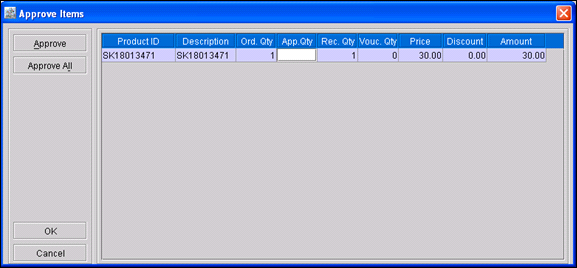
In the Approved quantity window, the 'Qty' column is removed, and approved qty field is enabled which will display the approved quantity as shown in Figure 1.3.
Figure 1.3
-
System will allow the User to increase or reduce the approved quantity such that the entered quantity is not less than maximum of Received or Vouchered Quantity and not more than the ordered quantity.
-
By default on opening the approve window, system will display the previous approved quantity in the Approved quantity field and the line in grid will be displayed in black color, and on changing the quantity will display the grid line in blue color.
-
On clicking Approve or Approve All button, if the line is already approved, then system will unapprove the line else it will approve the line till received quantity.
-
On unapproving the line, system will display the previous quantity and line will change to black color.