Reference No: 26056
(V 02.00.18-00)
Fixed Depreciation for Serial Items
Details
Fixed Depreciation can be defined for Serial Items from their Item Edit windows, as shown in Figure 1.0 and gets calculated as described in Table 1.0.
Figure 1.0 Fixed Depreciation defined from an Item's Edit Window
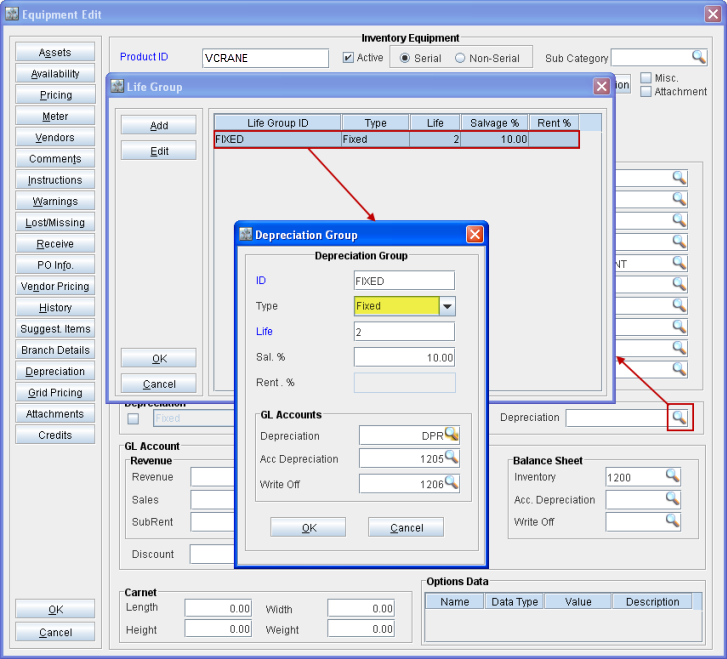
Table 1.0 Calculation of Fixed Depreciation
|
|
Value |
Description |
Example (Product ID = VCRANE, Asset ID = 813) |
|
Cost Price |
Cost of the Item's Asset. |
The price at which the Asset is received. |
1000 |
|
Type |
Fixed |
Type of Depreciation being set for the Item. |
|
|
Sal % |
Salvage Value Percentage. |
Salvage Value as percentage of the Cost Price of the Asset. |
10% |
|
Salvage Value |
Cost Price x Sal % |
Salvage Value is the final value of the Asset after applying depreciation. |
1000 x 10% = 100 |
|
Depreciation Amount |
Cost Price - Salvage Value |
Amount by which the Item's Cost Price gets depreciated to reach its Salvage Value. |
1000 - 100 = 900 |
|
Life |
Number of months |
Number of times the Asset's Cost Price should get depreciated by the Depreciation Amount per Month to reach its final Salvage Value. |
2 |
|
Depreciation Amount per Month |
Depreciation Amount/Life |
Amount by which the Item's Cost Price gets depreciated after each month, for the number of months as defined in Life field, to reach its Salvage Value. |
900/2 = 450
This means the Cost Price of the Item's Asset (1000) will get depreciated by the Depreciation Amount per Month (450), for the number of months as defined in Life field (2), till it reaches its Salvage Value (100). |
The Item Assets' Cost Price will get depreciated after each month by its Depreciation Amount per Month, for the number of months as defined in its Life field, to reach the Salvage Value. After each such month, an entry gets created for each of the Item's Assets, which can be posted (from Invoicing module > Depreciation tab) by adding them to a Depreciation Batch.
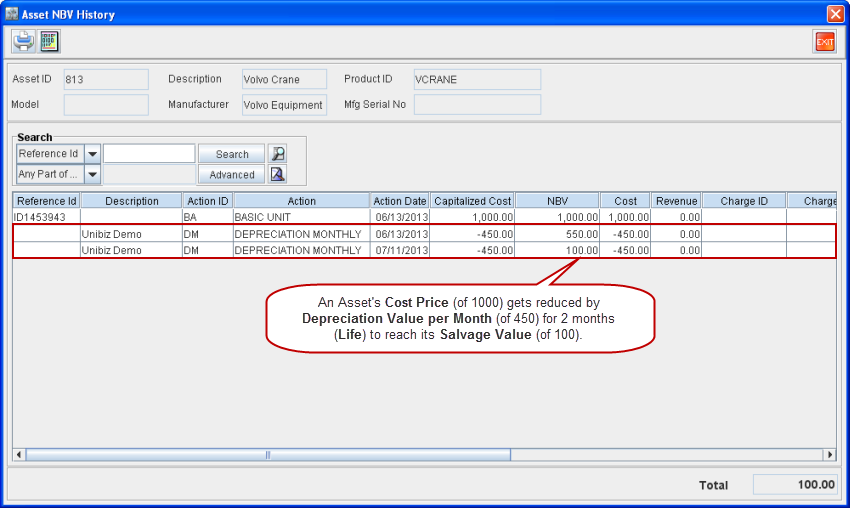
On posting such a depreciation entry for an Asset using a Depreciation Batch, a corresponding entry gets entered in the Asset's NBV History, as shown in Figure 1.1. The Site ID of the Asset will also get entered in General.csv file's Site ID column (Column K) on posting.
Figure 1.1 Asset NBV History Displaying Depreciation Entries for Fixed Depreciation