Reference: 22904
(V 02.00.07-00)
Details
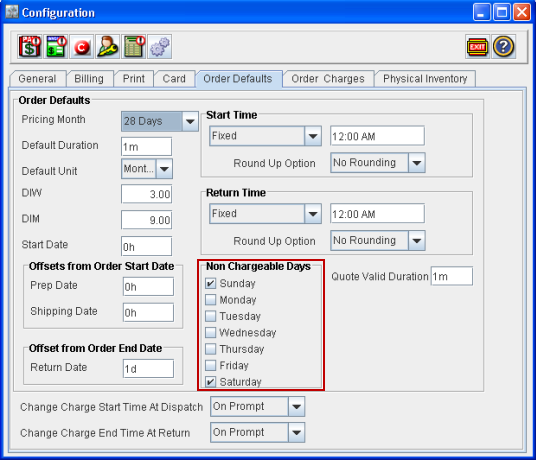
In CR2, you can pre-define the week days that has to be considered as non-chargeable days for a periodic billing order. This can be done using the options which are present in Configuration module > Order Defaults tab > Non Chargeable Days (refer figure 1.0).
Figure 1.0
Functionality
-
On creating a periodic billing rental order with Non-chargeable days selected in configuration module, system will calculate the order amount by excluding the days which are selected in Configuration module > Order Defaults tab > Non Chargeable Days section and based on number of days defined in DIW and DIM fields of the item lines.
-
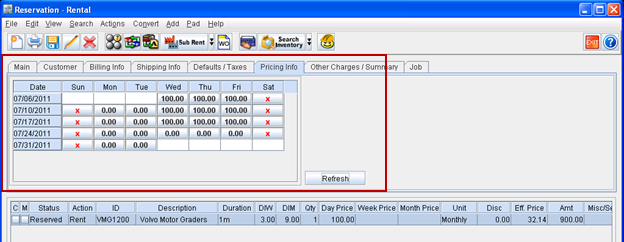
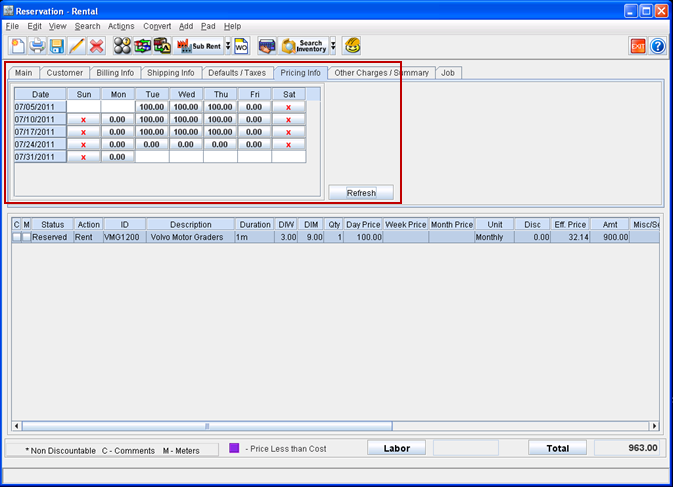
In the Order window, you can view the chargeable and non chargeable days for the order, along with the total amount calculated for each day under Pricing Info. tab (Order Window). (refer Figure 1.1 for illustration)
Figure 1.1
Charge Details Grid column Information
|
Column |
Description |
|
Date |
Displays the dates from Charge Start Date to Charge End Date. |
|
Week Day Columns (Sun, Mon, Tue, Wed, Thu, Fri,Sat) |
The week days column displays the value based on chargeable and non-chargeable status for each day as below : Will be displayed as blank, if the day / days present is not between order charge start date to end date. 
Will be displayed as "X", if day/ days are selected as Non-chargeable in configuration. 
Total amount charged for a day. 
Will display the value with grey background color, if charged Day/ Days are posted. 
|
-
On creating a new periodic billing order, system will display the charge details in Pricing Info. tab as blank. The charge details grid can be updated after adding item to the order, either by clicking the Refresh button present in the Pricing Info. tab or by clicking the Total button.
Illustration
Scenario - I (Periodic Billing Order with Billing Terms set as Daily)
Pre-requisite
-
In Configuration module > Order Defaults tab > Non Chargeable Days field, set Sunday and Saturday as Non Chargeable Days.
-
Create an order having the details as mentioned below:
|
Order |
Charge Duration |
Item |
Qty |
DIW |
DIM |
Duration |
Day Price |
Unit |
|
ORD#1 |
07/05/2011-07/06/2011 |
VMG1200 |
1 |
3 |
9 |
1d |
100.00 |
Day |
-
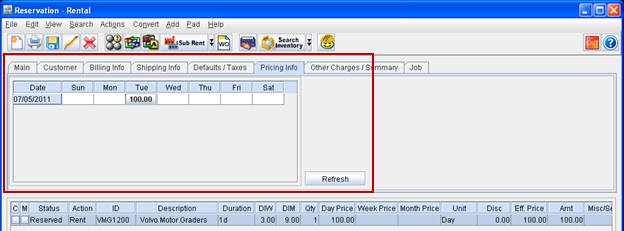
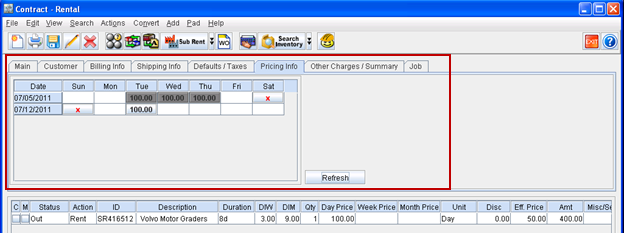
Charge details will be displayed in the order as shown in Figure 2.0.
Figure 2.0
-
In the above scenario, order start date is on Tuesday. If the invoices are posted daily till Friday, the amount will be calculated for first 3 chargeable days of the first week as Saturday and Sunday are set as Non Chargeable days.
-
On posting the invoice generated for order on 07/05/2011, 07/06/2011and 07/07/2011, system will move the next chargeable day to Monday as shown in Figure 2.1.
-
With reference to the above scenario, next chargeable days is moved to Monday by considering the below settings:
|
DIW |
Non chargeable days set in configuration |
Duration |
Billing Terms |
Unit |
|
3 |
Saturday, Sunday |
1d |
Daily |
Day |
Fig 2.1
Scenario - II (Periodic Billing Order with Billing Terms set as Weekly)
Pre-requisite
-
In Configuration module > Order Defaults tab > Non Chargeable Days field, set Sunday and Saturday as Non Chargeable Days.
-
Create an order having the details as mentioned below.
|
Order |
Charge Duration |
Item |
Qty |
DIW |
DIM |
Duration |
Day Price |
Unit |
|
ORD#2 |
07/06/2011- 07/13/2011 |
VMG1200 |
1 |
3 |
9 |
1w |
100.00 |
Week |
-
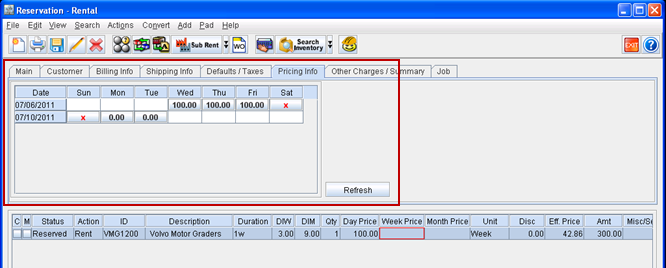
System displays the charge details in Pricing Info. tab (refer fig 3.0) by considering the below settings:
|
Order Starting Day |
DIW |
Non chargeable days set in configuration |
Duration |
Unit |
|
Wednesday |
3 |
Saturday, Sunday |
1w |
Week |
Figure 3.0
-
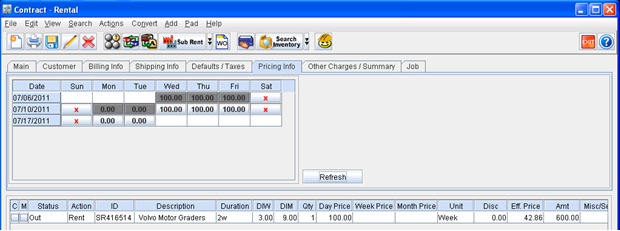
On generating the first invoice generated for the order, charge details will be displayed in Pricing Info. tab as shown in Figure 3.1.
Figure 3.1
Scenario - III (Periodic Billing Order with Billing Terms set as Monthly)
Pre-requisite
-
In Configuration module > Order Defaults tab > Non Chargeable Days field, set Sunday and Saturday as Non Chargeable Days.
-
Create an order having the details as mentioned below :
|
Order |
Charge Duration |
Item |
Qty |
DIW |
DIM |
Duration |
Day Price |
Unit |
|
ORD#3 |
07/06/2011-08/03/2011 |
VMG1200 |
1 |
3 |
9 |
1m |
100.00 |
Monthly |
-
System displays the charge details in Pricing Info. tab (refer figure 4.0) based on the below settings:
|
Order Starting Day |
DIW |
DIM |
Non chargeable days set in configuration |
Duration |
Unit |
|
Wednesday |
3 |
9 |
Saturday, Sunday |
1M |
Monthly |
Figure 4.0