
Reference No:22829
Table of Contents
Details
In CR2-Maintenance module main window, the Form Setup icon is provided with a drop down having the options Form Setup (existing) and Set Batch Print Forms as shown below.
Fig 1.0

On selecting Form Setup option from the drop down or clicking on Form Setup icon, system will display Form Setup dialog normally as it was displaying in the earlier versions.
Set Batch Print Forms option
Using Set Batch Print Forms option, you can set default forms for different Invoice Types, i.e., Invoice, Credit Memo and Debit Memo for printing the Invoice Batches.
Steps to set default form for Invoice Type-Invoice
-
In Maintenance module main window, select Set Batch Print Forms option from the drop down present beside the Form Setup icon in the tool bar.
-
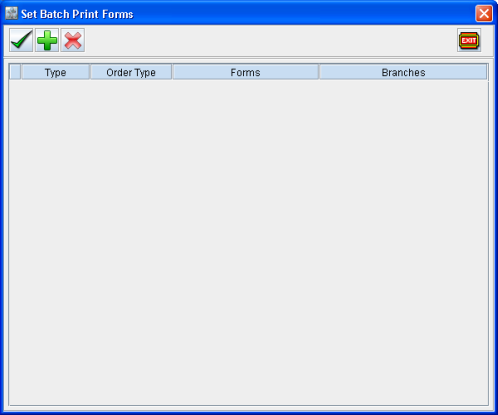
System will display Set Batch Print Forms dialog as shown below.
Fig 1.1
-
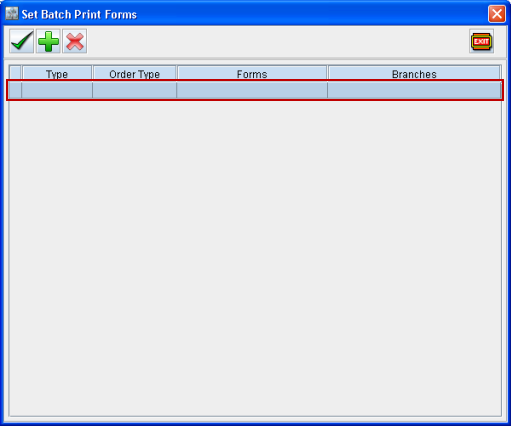
Click Add icon

Fig 1.2
-
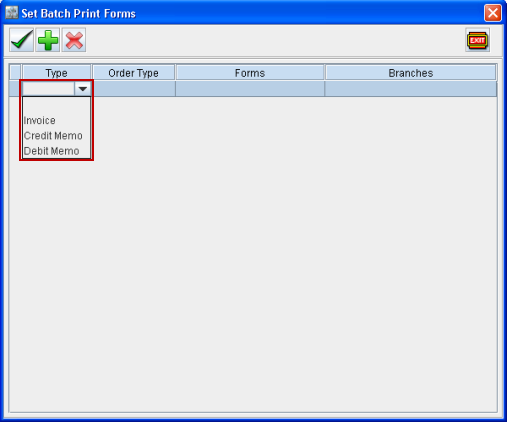
Click inside the Type column and select Invoice Type as shown below.
Fig 1.3
-
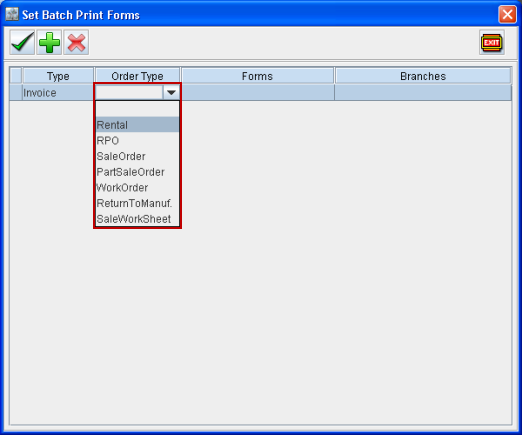
Click inside Order Type column and select the Order Type for the Invoice Type selected as shown below.
Fig 1.4
-
Click inside Forms column and select a default Form for Invoice Type and Order type selected as shown below.
Fig 1.5
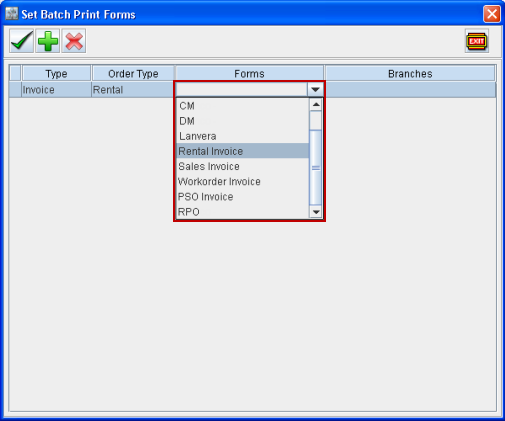
All the Forms set for the Type Invoice having Order Type selected will be listed in the drop down.
-
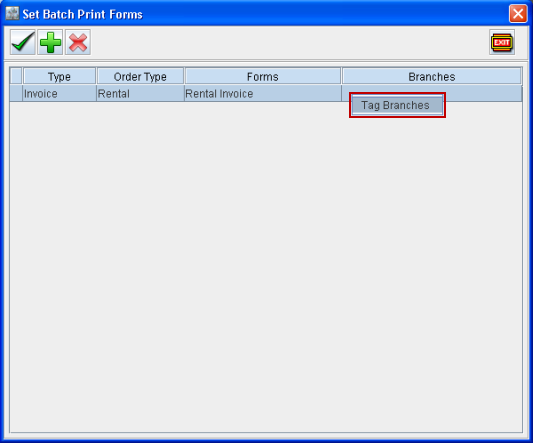
To set Branch specific form for the Invoice Type, right-click inside the newly added line, Tag Branches option will be displayed as shown below.
-
Select the Tag Branches option.
Fig 1.6
-
Branches dialog will be displayed, tag all the required Branches for which you want to set the specific form and click OK.
-
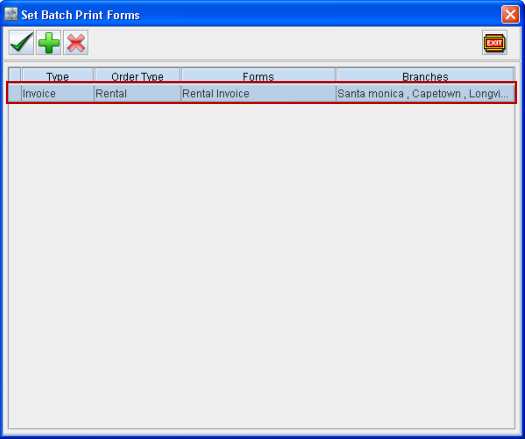
System will display all the Branches with a comma separator after each branch in the Branch field as shown below. (To select only one branch, click inside the Branch field, all the branches selected in Branches dialog will be displayed in drop down list)
Fig 1.7
-
Repeat the Steps (1-9) to set default forms for all Invoice Types.
Functionality of Set Batch Print Forms while printing Invoice batches
While printing invoice batches from Invoicing Module Main Window g Print Batch icon / from within Invoice Batch g Print Batch, system will print the individual invoices based on the Forms Set for Invoices as explained below:
-
System refers to applicable form set through Set Form feature as first priority.
If a Form is set for an invoice through Set Form feature present within the batch, then system will always print the invoice using the respective form set through Set Form feature.
-
System refers to applicable form set through Set Batch Print Forms as second priority.
If form is not set for an invoice through Set Form feature, system will consider the default form set in Set Batch Print Forms dialog for the respective invoice subtype and the Branch of the invoice.
For example, if individual form is not set for a credit memo invoice in an Invoice Batch using Set Form feature, then while printing the Invoice batch, system will consider the default form defined in the Set Batch Print Forms dialog for the Branch of Credit Memo and Invoice Type Credit Memo to print the Credit Memo.
If a form is not set for Invoice Type Credit Memo with Branch as Branch of Credit Memo in the Set Batch Print Forms dialog, then system will look for other records in the Set Batch Print Forms dialog with Invoice Type as Credit Memo and no Branch tagged. If found then system will print the invoice using this form.
If a form is not set for Credit Memo for the particular Branch in the Set Batch Print Forms dialog, then system will look for other records in the Set Batch Print Forms dialog which is done for Invoice Type Credit Memo but has no Branch defined. If found then system will print the invoice using the respective form.
-
System refers to applicable form set through Maintenance module g Form Setup as third priority.
If system finds no applicable form set for a specific invoice type and for the particular Branch under Set Batch Print Forms dialog and no form is set for particular invoice through Set Form feature, then system will consider the Form Set as Default in Form Setup for Type Invoice in Maintenance Module.
-
System refers to applicable form from CR2Home → Screens folder
If system finds no applicable form set for a specific invoice type and for the invoice Branch under Set Batch Print Forms dialog, no form is set for particular invoice Set Form feature and no form with Type as Invoice is set as Default in Maintenance → Form Set up which is applicable for the invoice Branch, then system will consider 159500UI present under CR2Home g Screens folder.
Set Form option in Invoicing module
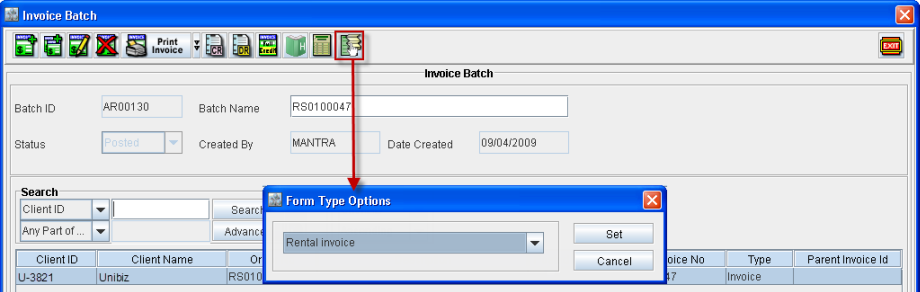
In Invoicing module, while printing the invoice batch either from Invoicing main window or from within Invoice Batch window, you can set the Form Type for each individual invoice present in the batch using Set Form feature present in Invoicing Batch window tool bar as shown below. on selecting the invoice (Type-Invoice/Credit Memo/Debit Memo) line and clicking Set Form icon present in the tool bar, system will display Form Type Options dialog in which you can Set the Form Type for the selected invoice.
Fig 2.1
-
In Form Type Options dialog, system will list all the default Forms Setup in drop-down present for the selected Invoice Type Invoice/Credit/Debit Memo.
-
System will print the invoice present in the batch based on the Form Type that is set for the invoice using Set Form feature.
-
Invoices for which the Form Type is not set using Set Form feature, system will refer to Form Type which is set as Default in Maintenance module Form Setup, if present otherwise, it will refer to the relevant invoice form present in CR2 installation FoldergScreens folder.
-
You can also set Form Type for multiple invoices at a time.
Points to Note
-
When a record with no Branch defined is present in the Set Batch Print Forms dialog, then that record will be applicable for all Branches.
-
Multiple Branches can be tagged to a Default form which is set for a particular Invoice Type in the Set Batch Print Forms dialog , the Branches which are tagged can be viewed by clicking on the drop down arrow in the Branches column.
-
In Set Batch Print Forms, multiple records for the same Invoice Type and same Branch cannot be defined.
-
In case the Invoice Type is changed for a particular record and a similar record for the same invoice type and Branch is present then system will not check for duplicate records. However, on clicking the OK icon, system will perform the check and display the message as shown below:
-
The check will be performed for one line at a time and on clicking OK system will allow you to resolve the error and continue, if another duplicate record is found the Error will be displayed again.