Reference: 21630 21686
(V 02.00.00-00)
Details
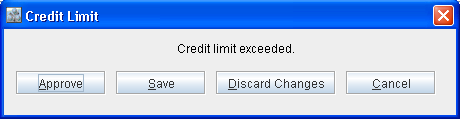
In Cr2, system will perform a Credit check for all types of Orders like Rental Order, Equipment Sale Order, Part Sale Order, Work Order, and RPO and prompt for Approving Credit Limit in case the Customer's credit limit has exceeded as shown in Figure 1.0.
Prompt for Approving Credit Limit
In case of Equipment Sale Order system will perform a Credit check only if the option Equipment Sale Order is selected in Configuration > Billing tab > Credit Check panel, refer Figure 1.1.
Figure 1.1 Credit Check Section in Configuration Module > Billing Tab
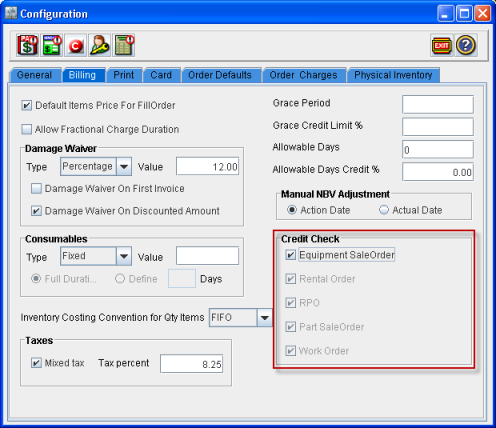
In Configuration > Billing tab > Credit Check:
-
The options Rental Order, RPO, Part Sale Order, and Work Order will be selected by default and will be disabled, hence it cannot be edited, therefore system will always perform a Credit Check for the following type of Orders Rental Order, RPO, Part Sale Order, and Work Order.
-
The option Equipment Sale Order will be enabled and you can either set is as selected or de-selected.
-
If Equipment Sale Order is selected, system will perform a Credit check and also prompt for Approval if the Customers Credit Limit has exceeded.
-
If Equipment Sale Order is de-selected, system will not perform a Credit check and will not prompt for Approval, even if the Customer Credit Limit has exceeded.
-
Approval Status in Orders
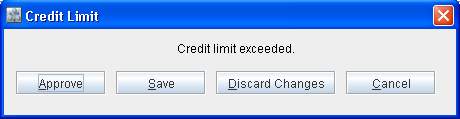
In Rental Order, Equipment Sale Order, Part Sale Order, Work Order and RPO you can view the Approval status of the Order. In case the Customers Credit Limit for whom the Oder is created has exceeded, system will prompt for Approval of Credit Limit as shown in Figure 1.2.
Figure 1.2 Prompt for Credit Limit Approval
-
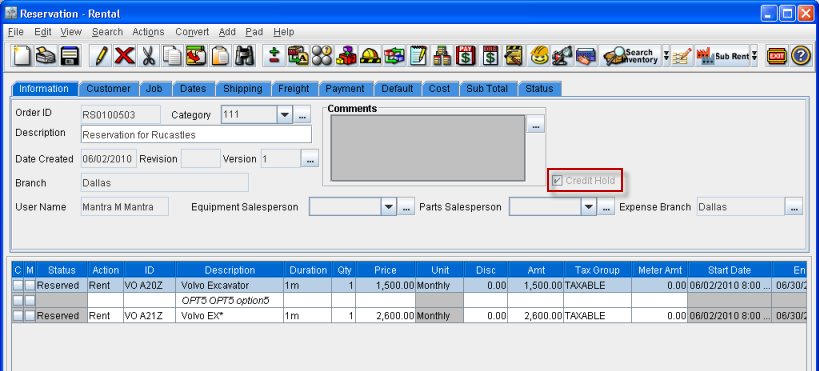
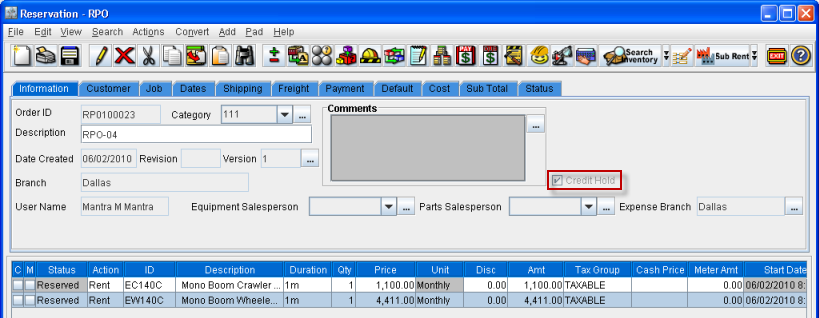
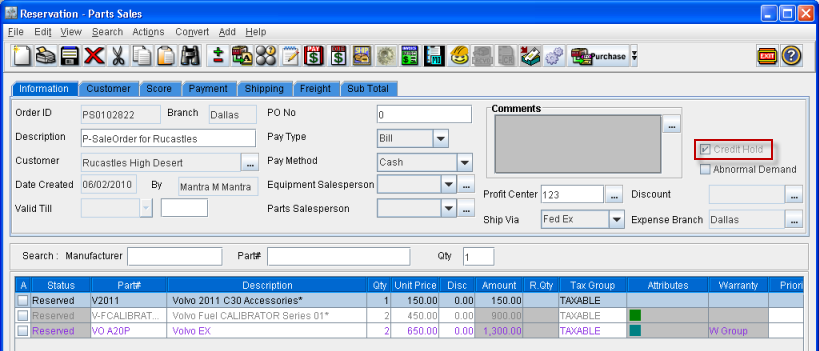
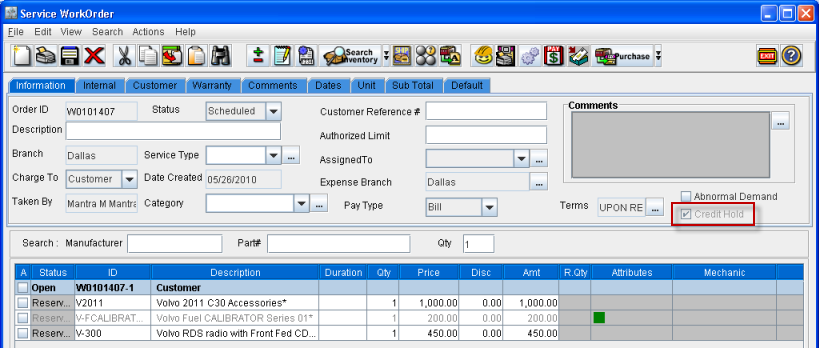
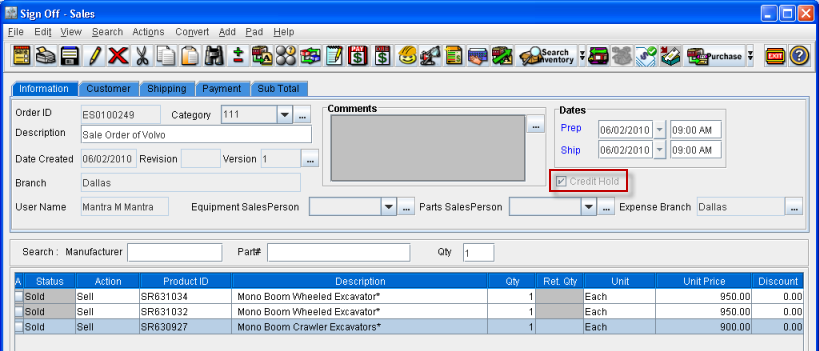
If Save is selected in the Credit Limit dialog, i.e., the Order is not Approved, then the Credit Hold check box present in the Information tab of the Order will be set as selected. This is a read only field and you cannot edit the status of the Credit Hold check box.
-
Rental Order
-
RPO
-
Part Sale Order
-
Work Order
-
Equipment Sale Order
-
-
If Approve is selected in the Credit Limit dialog, i.e., the Order is Approved, then the Credit Hold check box present in the Information tab of the Orders will be set as de-selected.
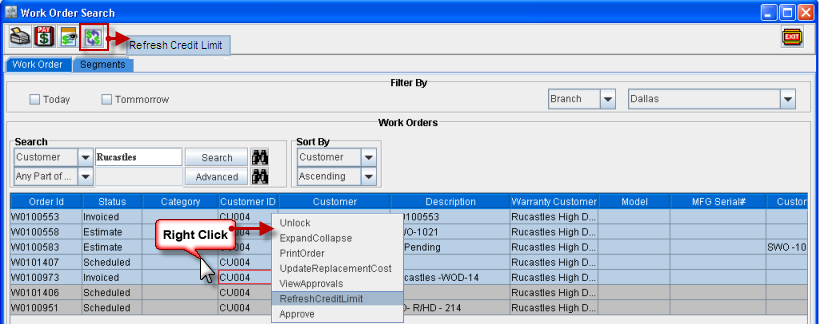
Refreshing Credit Limit of Work Orders
In Work Order search window to refresh Credit Limit of Work Orders, you can select multiple lines and then click on the Refers Credit Limit icon in the tool bar or select the Refresh Credit Limit option available in the right click options menu, refer Figure 1.3.
Figure 1.3 Refreshing Credit Limit from Work Order Search Window